
Logging
Image logging supports the following formats:- Numpy arrays
- PIL/Pillow images
- PyTorch tensors
- Matplotlib plots or figures
pluto.Image class.
Viewing
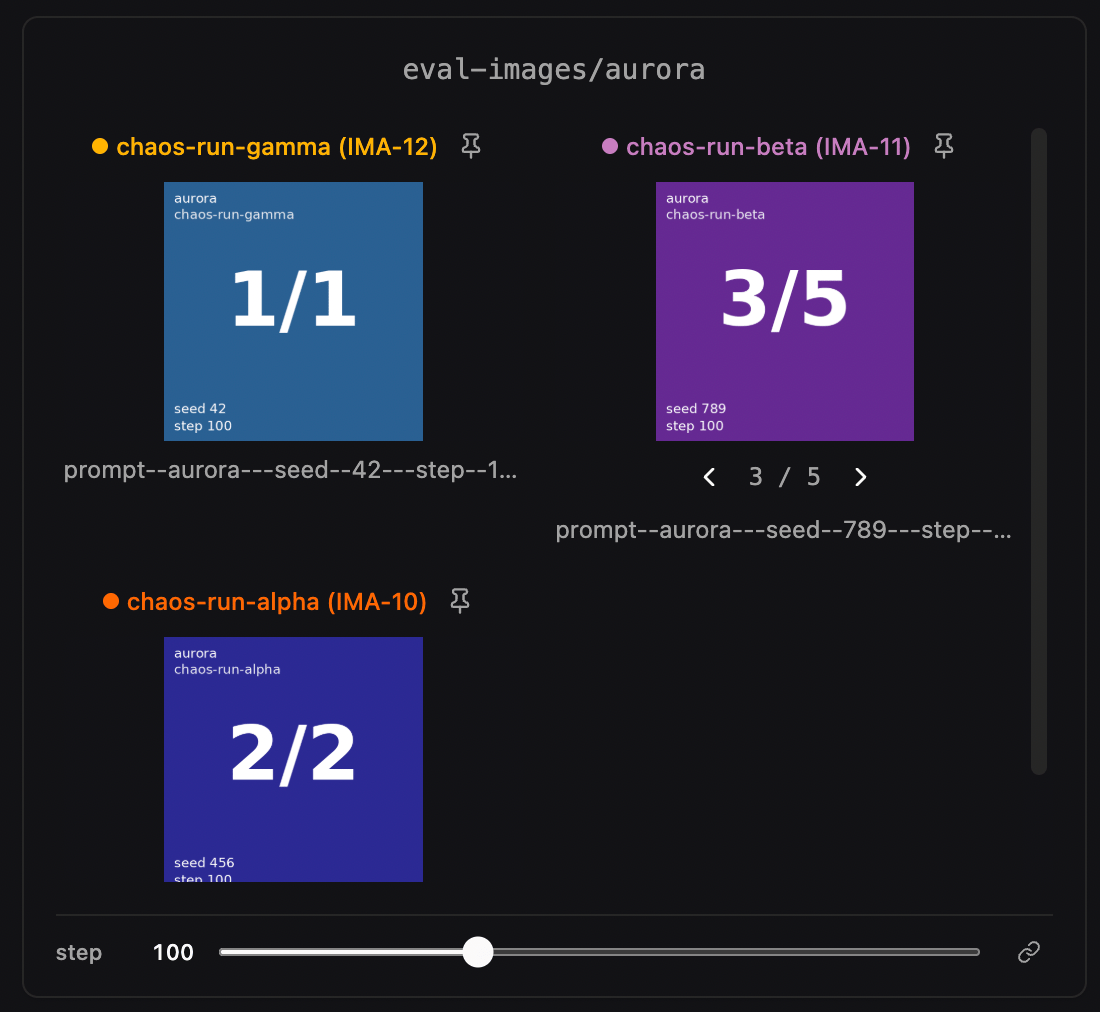
Logged images appear as gallery cards, grouped by their metric label prefix. When comparing multiple runs, images from each run are shown side-by-side.Comparing multi-sample image logs across runs, with per-card step pinning.
Adding to a dashboard
Images show up automatically in the Compare view. To place an image gallery on a custom dashboard, open Add Widget, choose the Files tab, and search for your image log name.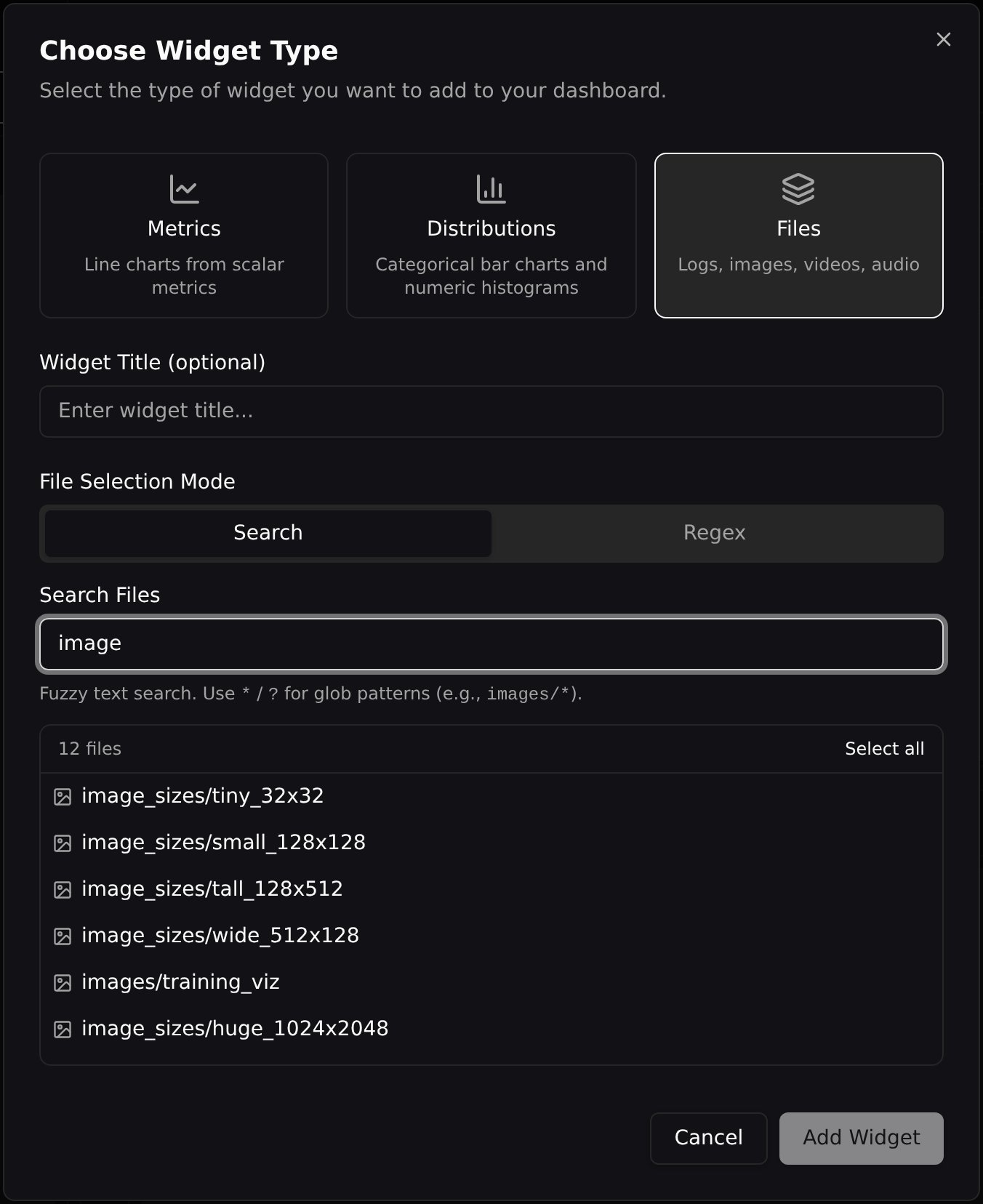
Step Navigation
If you log images at multiple training steps, use the step slider below the images to browse through different steps. This is useful for tracking how generated outputs (e.g., sample images, attention maps) evolve over the course of training. When multiple image groups are displayed in the same section, their step sliders can be linked so that changing the step on one group changes all of them simultaneously. Click the lock icon on the step navigator to toggle sync on or off.Multi-Sample Logging
Log several images at the same step under one log name by passing a list. Every sample renders inside the same card with a per-cell◀ i / N ▶ nav row above the image:
Sync Sample Indices
A Sync Sample Indices selector in the media settings popover controls how the sample index is shared:- Off — each run steps through its samples independently.
- Across runs — every run in the same widget shares the sample index.
- Across widgets (default) — every run on every media widget (image, video, and audio) advances the sample index in tandem.
Pinning Runs at a Step
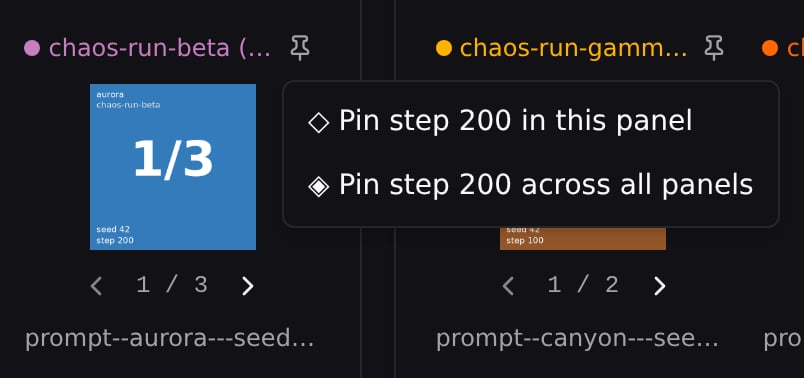
The global step slider forces every run to be viewed at the same step, which makes it hard to compare runs at their respective best-performing checkpoints — different runs converge at different steps, and the artifacts you actually want side-by-side don’t all live at the samestep.
Pinning solves this by letting you freeze individual runs at a specific step while the global slider keeps driving everything else. Common workflows:
- Lock a baseline run at its best step, then sweep the slider on the rest to see how the variants compare against that fixed reference.
- Pin every run on the page at its own argmin/argmax of a metric so the gallery shows each run’s best checkpoint regardless of when it landed (see Best-Step Pinning below).
- Hold a run frozen at a known-bad step to inspect failure modes while other runs continue advancing.
Unpinning
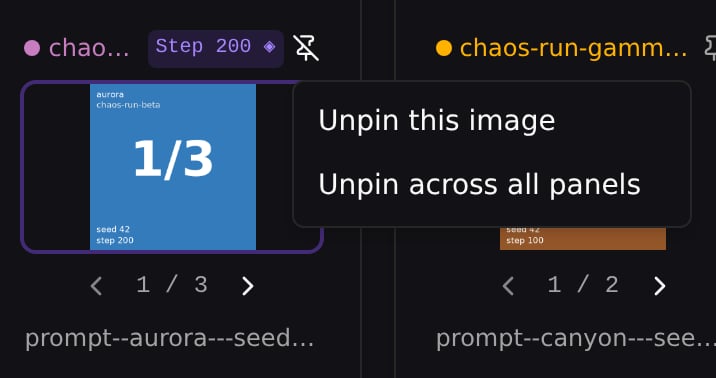
Cross-panel and best-step pins offer two unpin options in a dropdown:- Unpin this image — removes the pin only from this widget. Other widgets that still hold the same cross-panel pin keep it.
- Unpin across all panels — removes the pin everywhere it was applied.
Clear All Pins
Open the Image Settings popover and click Clear All Pins to remove every pin (local, cross-panel, and best-step) at once for the current page.Best-Step Pinning
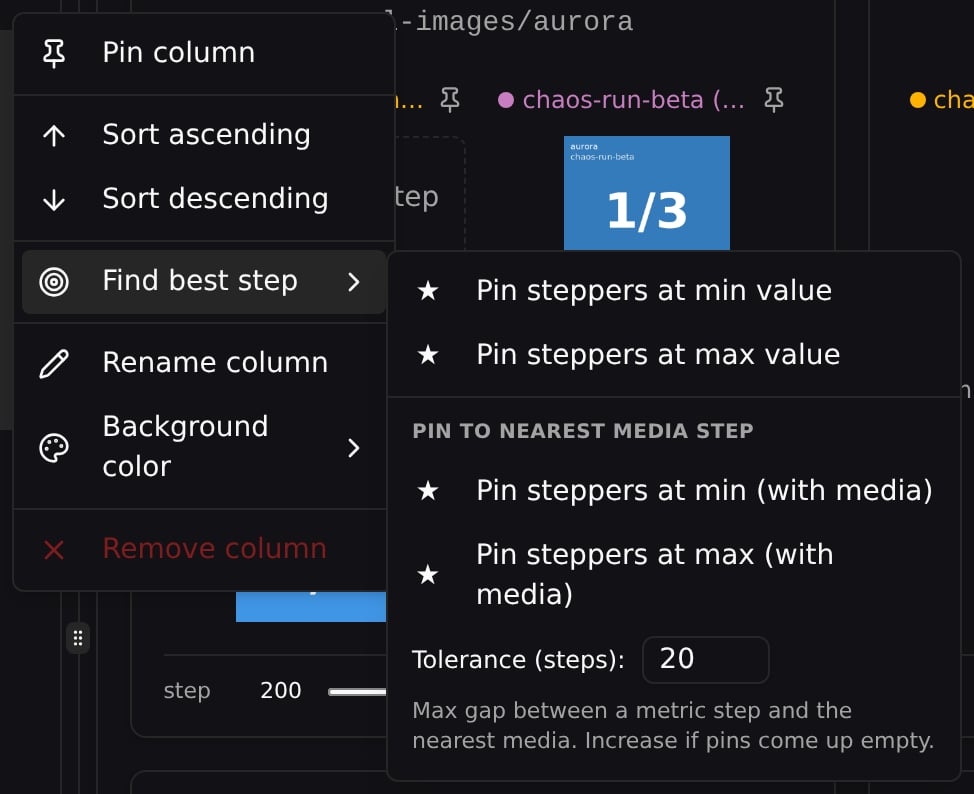
For metric-driven exploration (ex. “show me each run at its best loss”), pin every run on the page to its own argmin/argmax step in one click. Open a metric column’s header menu in the runs table, then choose Find best step → one of:
The (with media) variants (grouped under Pin to nearest media step) are useful when your metric and image cadences don’t perfectly overlap — without them, the chosen step might land on a step that has no image, so the card falls back to the No image at step N placeholder.
Tolerance Window
Even with the (with media) variants, your metric and image cadences may not align exactly (e.g. metric every 10 steps, images every 10 steps offset by 5). The best-step picker handles this with a nearest-snap with tolerance: each metric step snaps to its closest image step within a step-distance limitK (default K = 20).
You can edit K directly in the Find best step submenu — type a value, press Enter or click any of the four pin buttons.
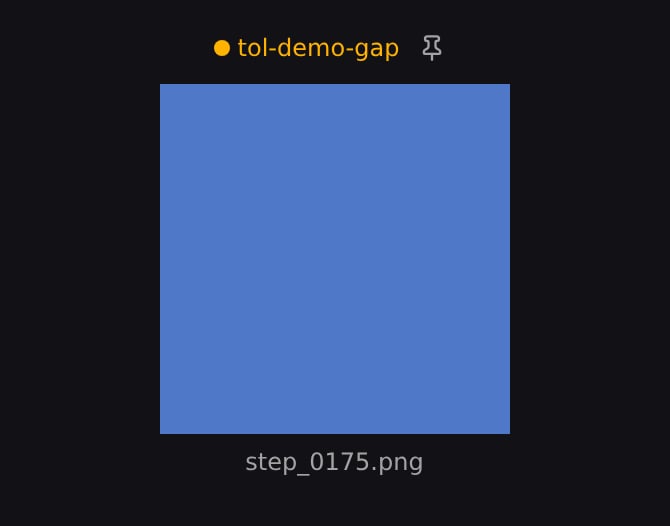
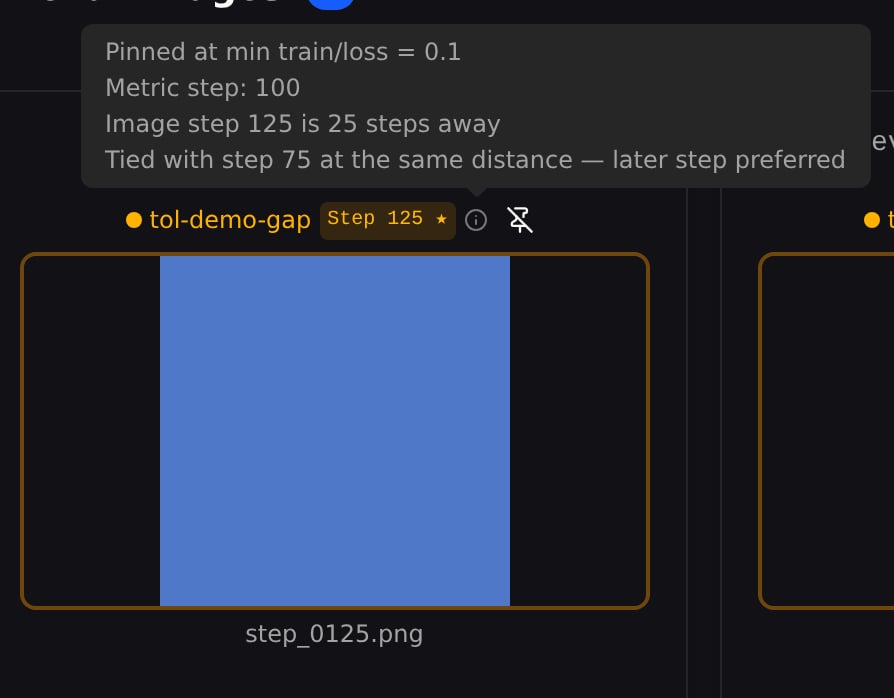
Widen the window if pins come up empty. In the tol-demo-gap run below, the metric is logged at steps 0/50/100/150/200 and images only at 25/75/125/175, so every metric step sits exactly 25 steps from the nearest image. At the default K = 20 nothing is within tolerance and the run stays unpinned (plain pin icon, no step badge); raise K to 25 and the min-loss step (100) snaps to image step 125 — the provenance even notes the tie with step 75, broken toward the later step.
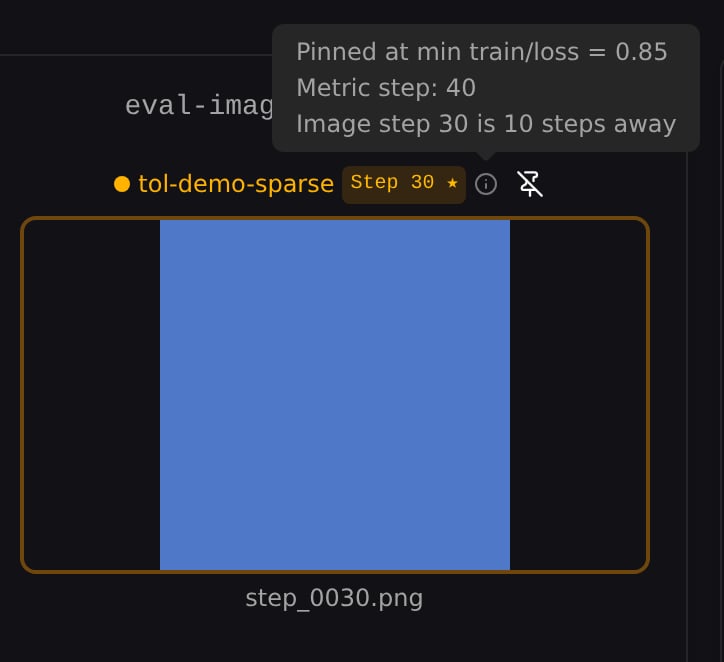
tol-demo-sparse below, K = 10 only reaches metric step 40 (loss 0.85), while K = 25 reaches metric step 55 — the true minimum (loss 0.1). The pinned image is the same in both (step 30); only the provenance popover reveals which metric step drove the pick.
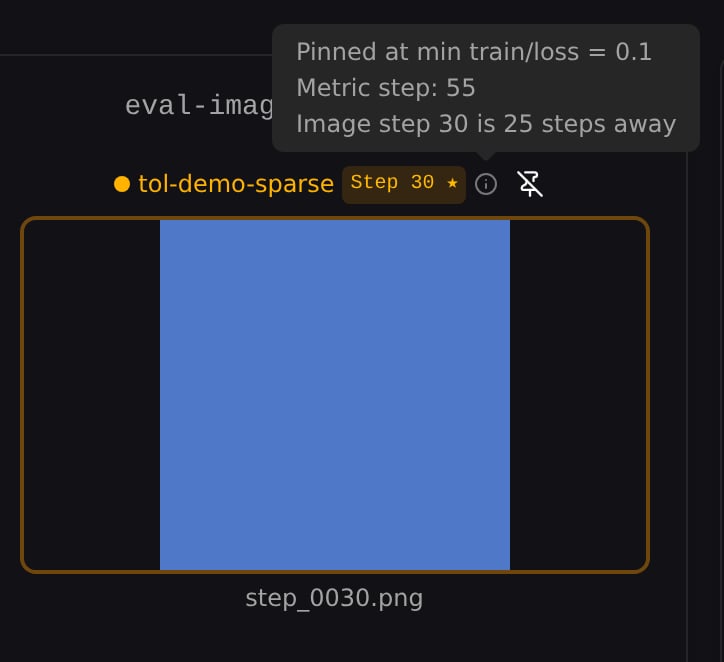
Pin Provenance
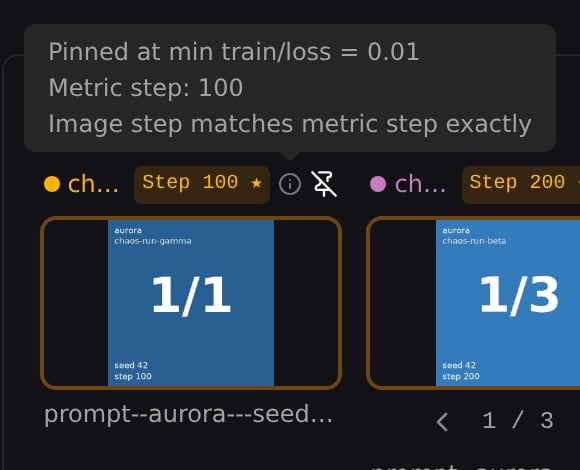
Every best-step pinned card shows an info icon (ⓘ) next to the run name. Hover for a popover that explains why this step was chosen:- A headline with the metric and extreme that drove the pick (e.g. Pinned at max train/loss = 0.9023)
- The metric step that drove the pick
- How many steps away the chosen image is from that metric step
- A tied-alternative line when more than one image step matched within tolerance
Sync Zoom
Click the settings icon on an image card to open the Image Settings popover. Enable Sync Zoom to persist the zoom level across image fullscreen views within the same group. When enabled, zooming in on one image carries over when you navigate to the next step. Sync Zoom is off by default.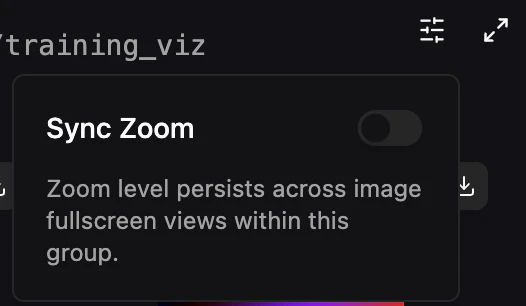
Annotations
pluto.Image accepts bounding boxes and segmentation masks, drawn as overlays on the image.
Boxes
Each box needs aposition with minX, minY, maxX and maxY. Everything else is optional:
There’s no limit on how many boxes a layer can hold, and a box drawn outside the image is clipped rather than rejected.
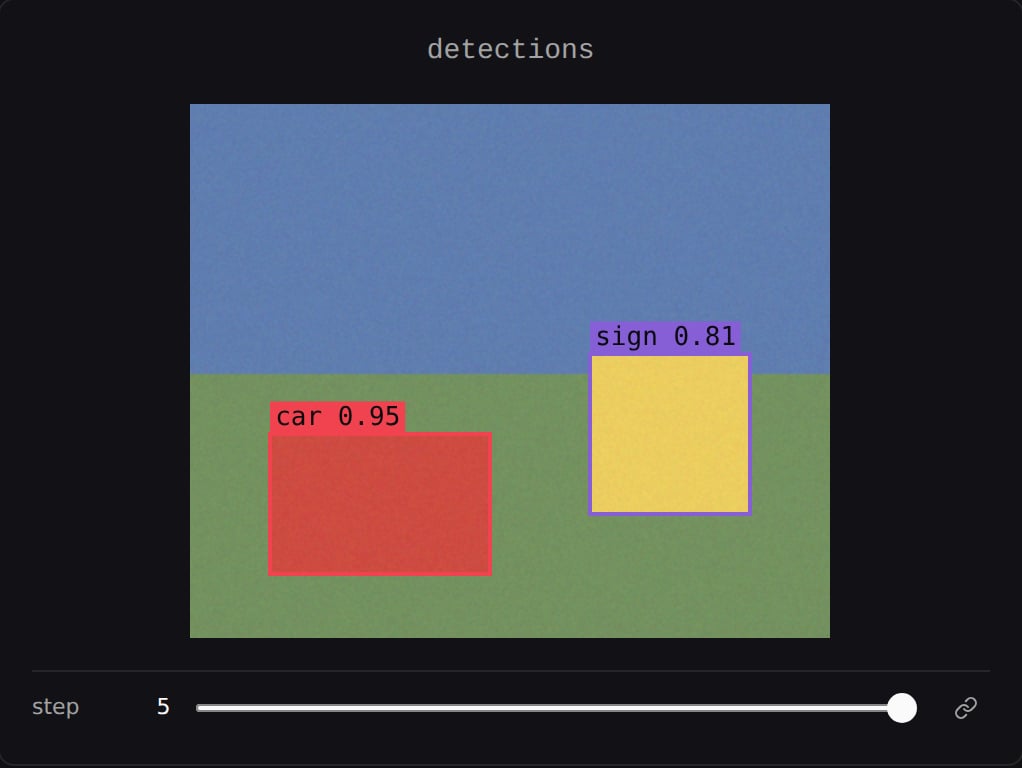
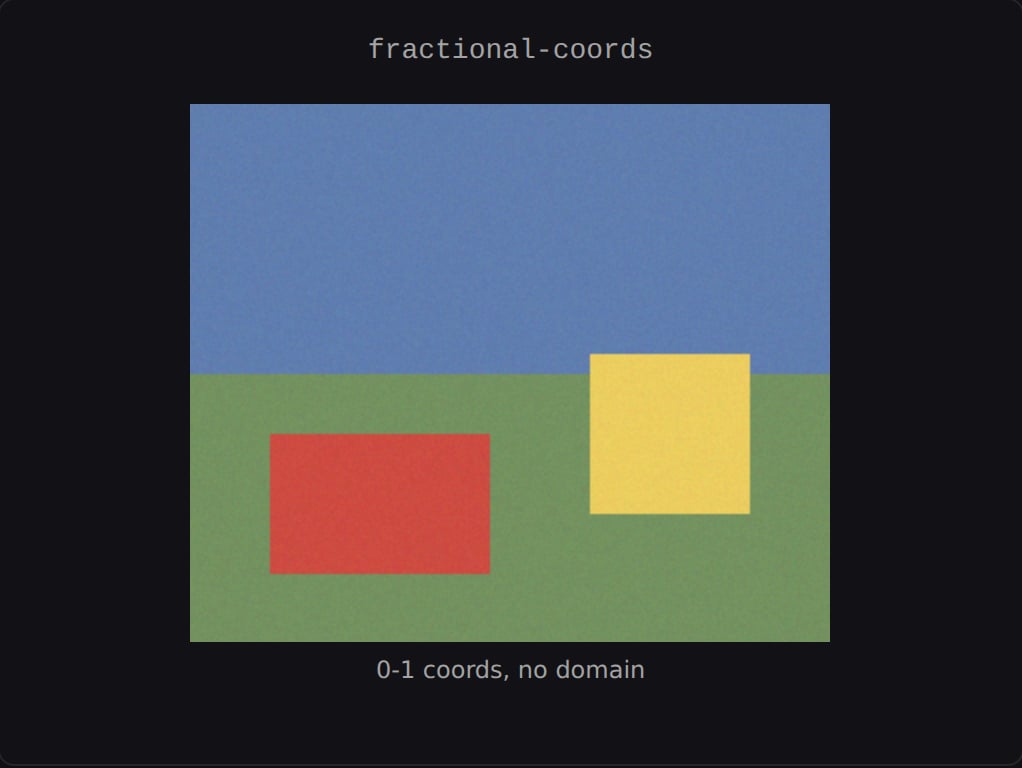
Pixel vs fractional coordinates
pluto.Image stamps every box with domain: "pixel" unless you set one yourself, so pixel coordinates work whether or not you pass domain — that’s what the boxes above are using.
To use fractional (0–1) coordinates you have to set domain to something else explicitly. Passing 0–1 values on their own means they’re read as pixels — a box a fraction of a pixel wide, which draws nothing at all:
Masks
mask_data is an array of class ids, one per pixel, uploaded as a separate PNG alongside the image.
- Class ids must be 0–255. Higher values wrap.
- Mask dimensions aren’t checked against the image — a mismatched mask is stretched to fit, so a different aspect ratio distorts.
- Multiple mask layers composite in name order at a fixed opacity.
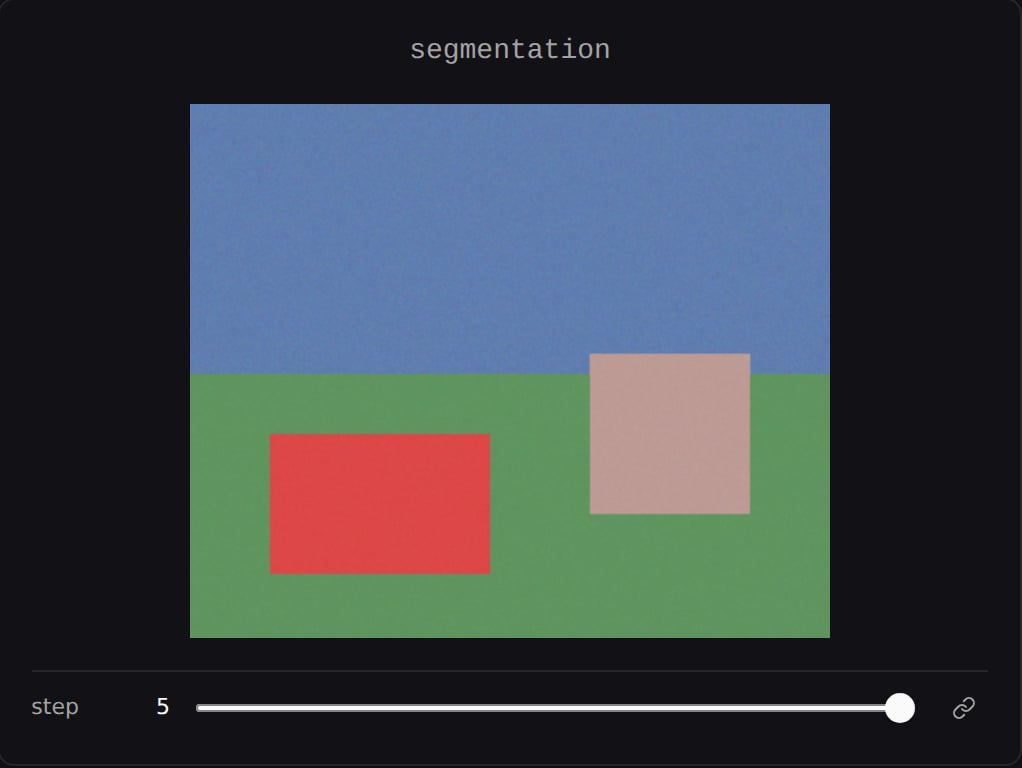
Self-hosted: masks are recolored in the browser by reading pixel data, which requires CORS headers on your object store. MinIO sends them by default; a bare S3 bucket does not, and masks will silently fail to draw.
Colors and captions
Class colors come from a fixed 16-color palette indexed byclass_id, so classes 16 apart share a color. box_caption overrides the class label on screen.
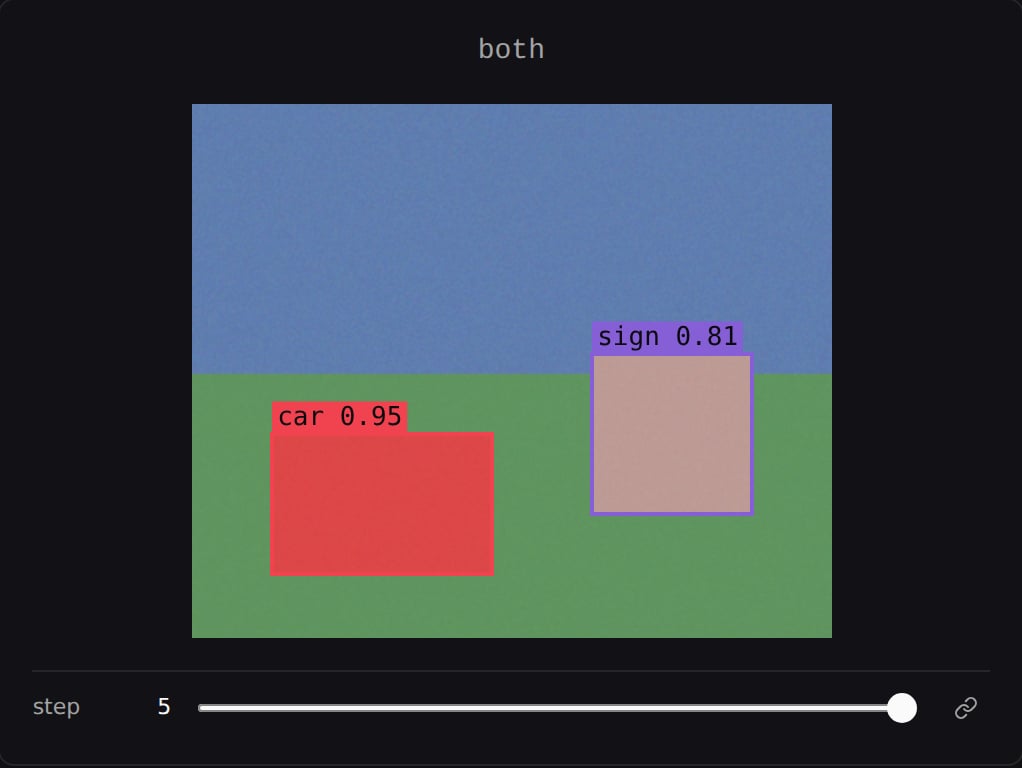
A
scores dict is accepted on a box but never displayed. Put the confidence in box_caption if you want it visible.