Metric Groupings
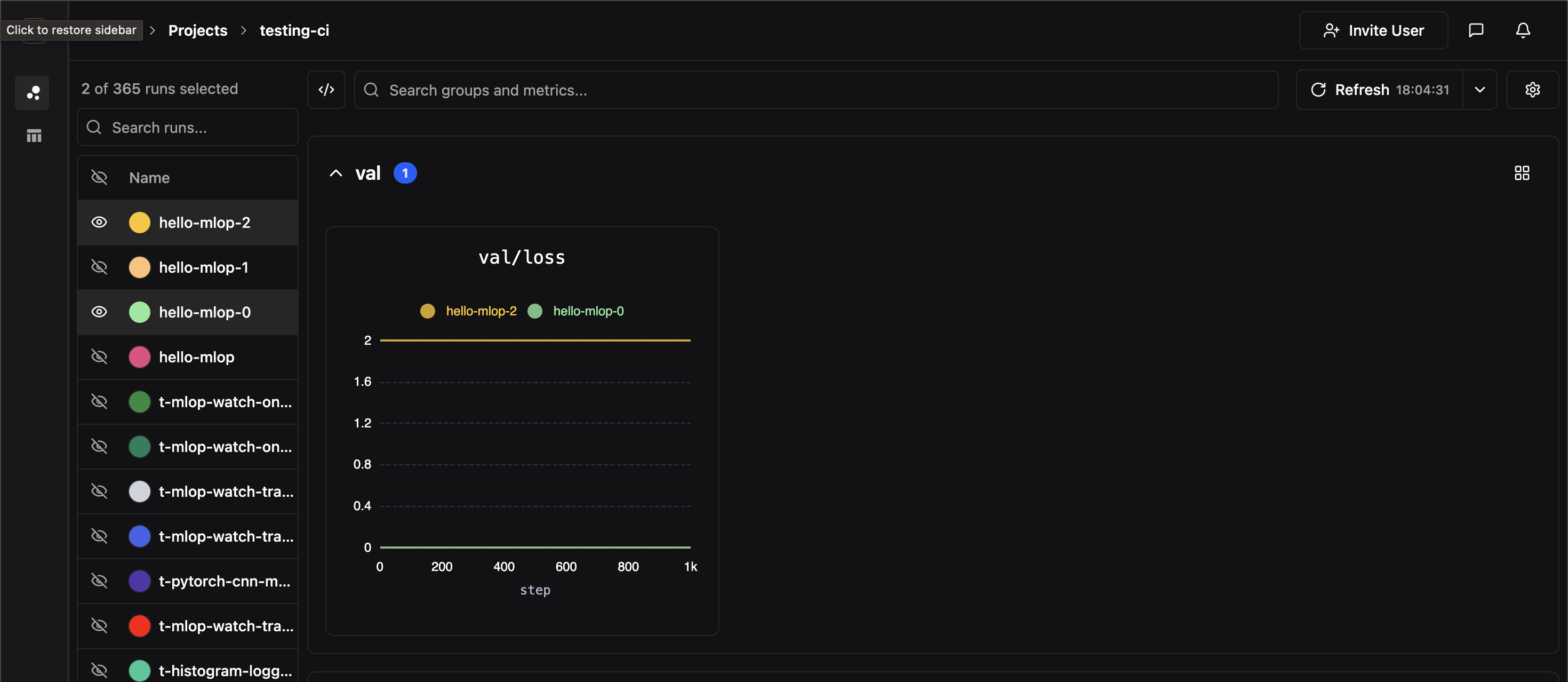
Metrics recorded withpluto.log produces a point in a time series, where each time series is associated with a user defined metric label. Every invocation of pluto.log is implicitly associated with a particular step value which represents the x-axis while the logged metric value is the y-axis. Metrics should be labeled using path like syntax i.e.
val), and each panel corresponds to a unique full metric label path. In the above example, we’ve created a panel for the metric label val/loss
Comparing Experiments
If two experiments have identically labeled time-series, their time series data will be co-plotted on the same panel. In the image below, we hide all of our experiments except for two which both contained time-series labeledval/loss
The runs you compare here are the ones you select in The Runs Table — use it to filter, group, and pick the runs you want side by side.
Side-by-Side View
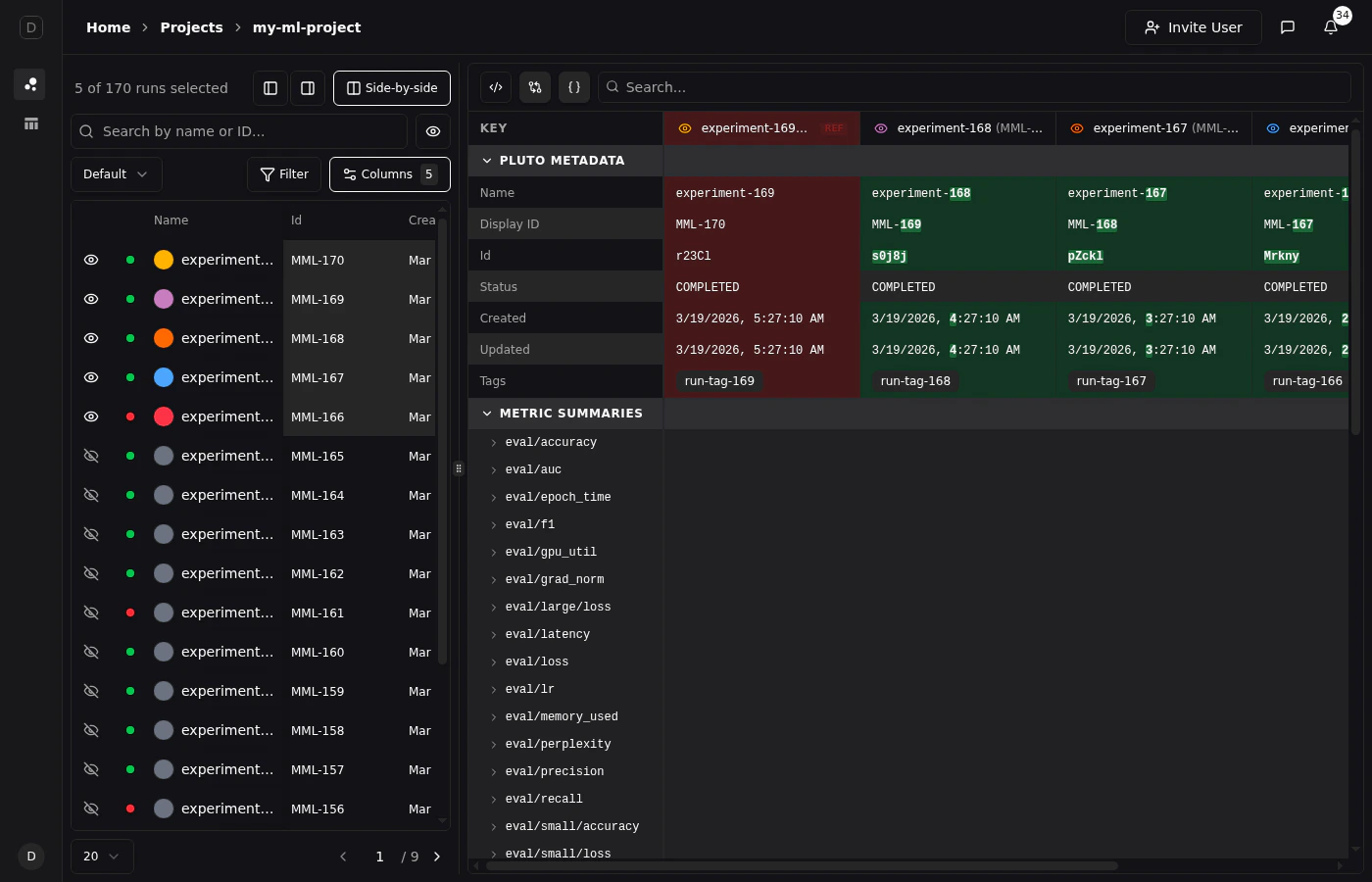
For a detailed tabular comparison of selected runs, click the Side-by-side button above the runs table. This opens a comparison view that displays all metadata and metric summaries in a structured table with one column per run.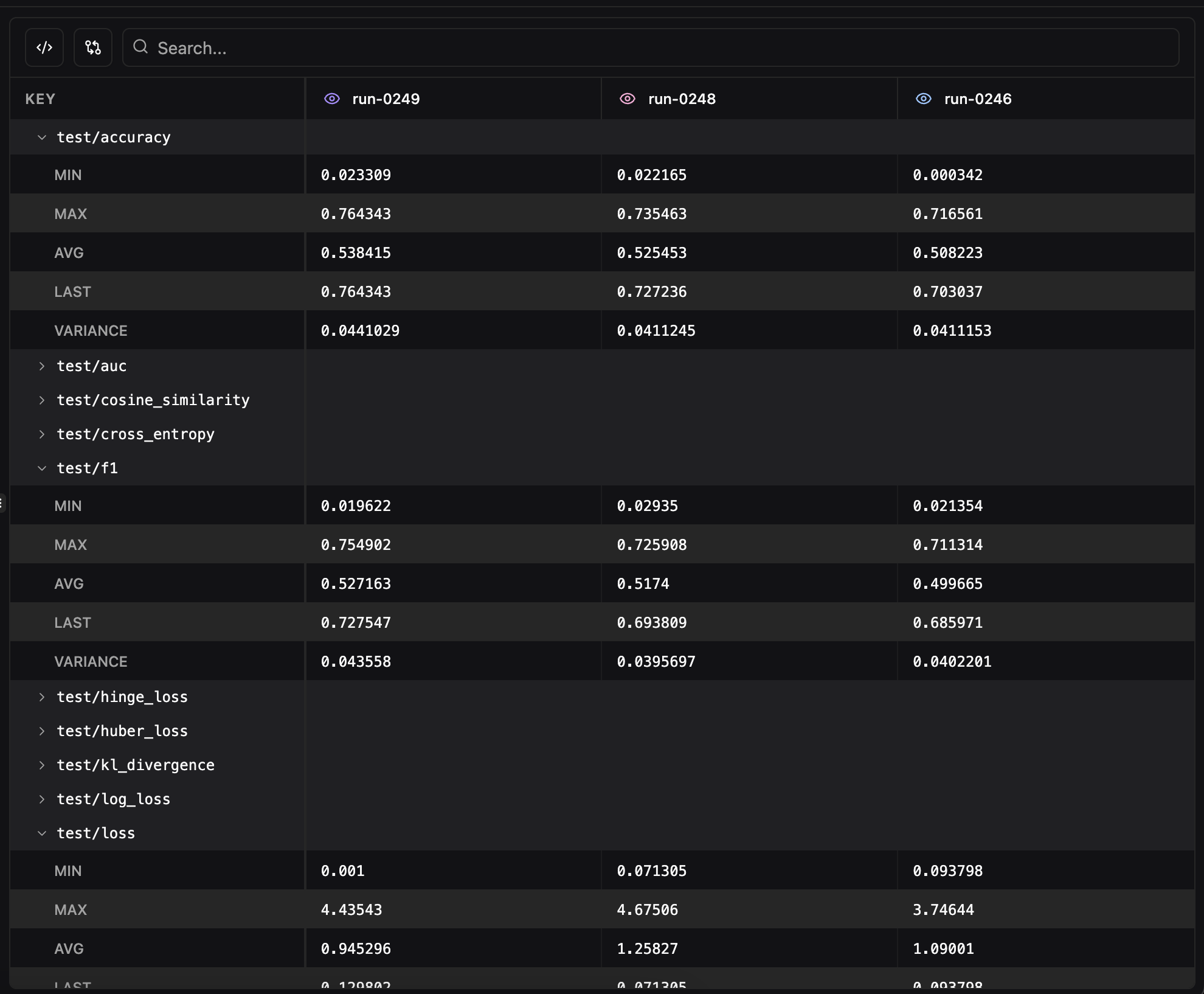
- Pluto Metadata — Name, ID, status, owner, timestamps, tags, and notes for each run
- Metric Summaries — Final values for every logged metric, organized alphabetically
- Search — Filter the comparison table by metric name with support for regex matching
- Remove from comparison — Click the eye icon on any run’s column header to temporarily hide it from the view
- Show only differences — Toggle to hide rows where all runs have identical values, making it easy to spot what changed between experiments
- Format JSON values — Toggle JSON pretty-printing for config values. JSON and Python dict values (single-quoted dicts,
True/False/None) are automatically detected and formatted with collapsible cells. Enabled by default.
Diff View
Click any run’s column header to set it as the reference run (indicated by a “REF” badge). With diff mode enabled, values are highlighted git-style:- Red background for the reference run’s values
- Green background for values that differ from the reference