> ## Documentation Index
> Fetch the complete documentation index at: https://docs.trainy.ai/llms.txt
> Use this file to discover all available pages before exploring further.
# Line Plots
> Log metric time series and interact with line charts in Pluto
## Logging
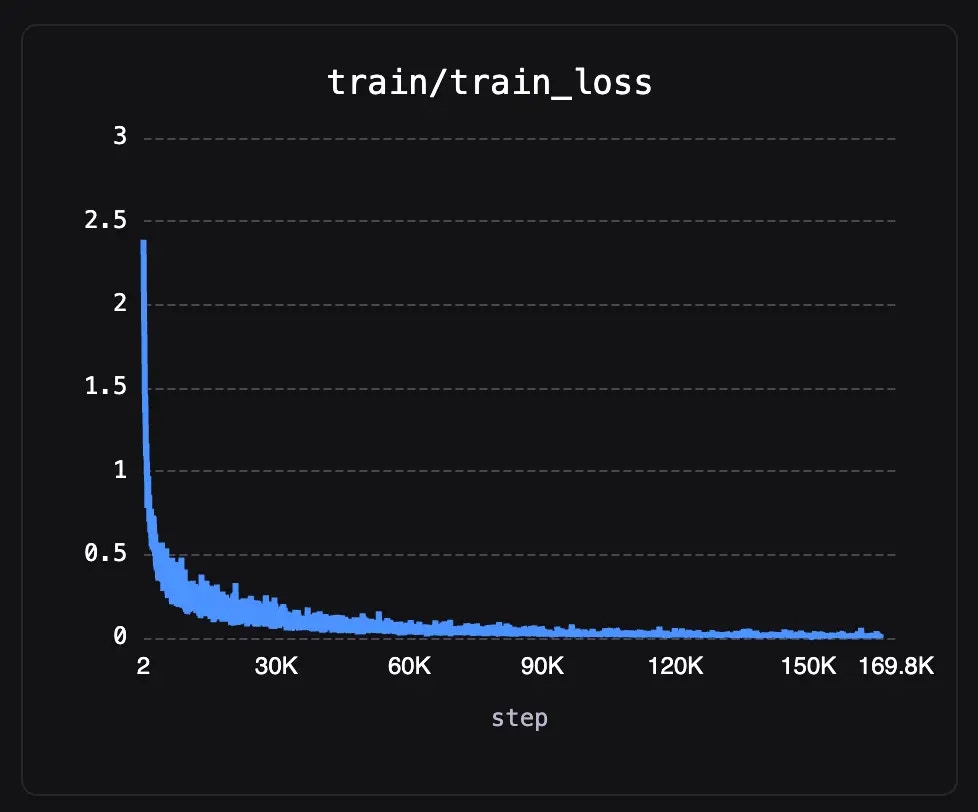
Line plots are ideal for plotting numerical data over time — losses, accuracy, learning rates, and similar metrics.
Supported datatypes are `float`, `int`, or `torch.Tensor` with a single value, or arrays of such.
```python theme={null}
pluto.log({"train/train_loss": 2})
```
 ## Viewing
 ### Zooming
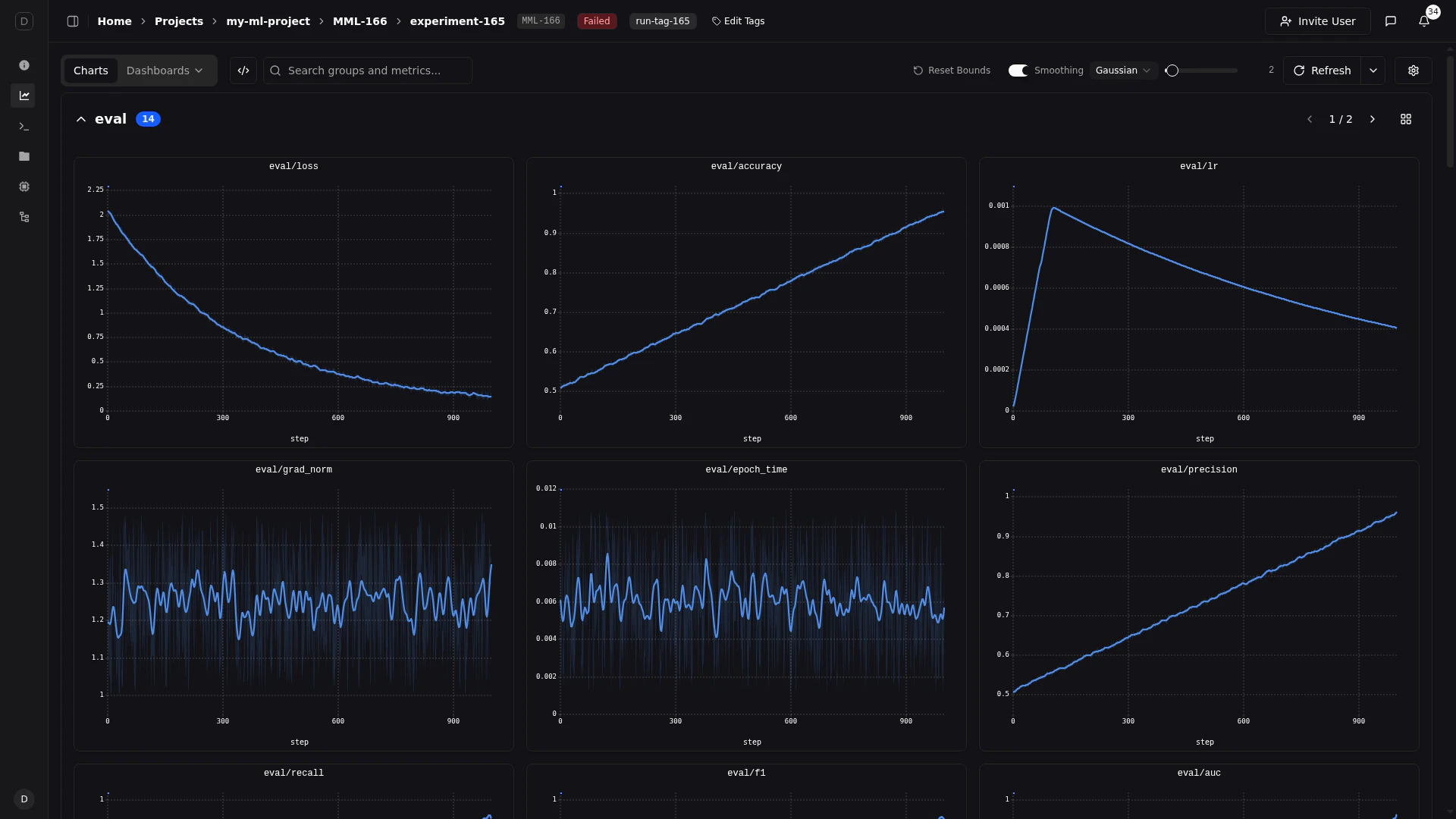
Pluto line charts support interactive zooming on both axes, letting you focus on specific regions of your data.
#### X-Axis Zoom
Click and drag **horizontally** on any chart to zoom into a range of steps. All charts in the same axis group (e.g., all step-based charts) will synchronize their zoom level, so zooming on one chart zooms all related charts to the same step range.
#### Y-Axis Zoom
Click and drag **vertically** on a chart to zoom the Y-axis. This is useful for focusing on a narrow value range, such as when losses are tightly clustered.
Y-axis zoom is independent per chart — it does not sync across panels.
#### Reset Zoom
Double-click on a chart to reset its zoom and return it to the full data range.
### Fullscreen View
Click the **expand** button on any chart's toolbar to open it in fullscreen.
### Zooming
Pluto line charts support interactive zooming on both axes, letting you focus on specific regions of your data.
#### X-Axis Zoom
Click and drag **horizontally** on any chart to zoom into a range of steps. All charts in the same axis group (e.g., all step-based charts) will synchronize their zoom level, so zooming on one chart zooms all related charts to the same step range.
#### Y-Axis Zoom
Click and drag **vertically** on a chart to zoom the Y-axis. This is useful for focusing on a narrow value range, such as when losses are tightly clustered.
Y-axis zoom is independent per chart — it does not sync across panels.
#### Reset Zoom
Double-click on a chart to reset its zoom and return it to the full data range.
### Fullscreen View
Click the **expand** button on any chart's toolbar to open it in fullscreen.
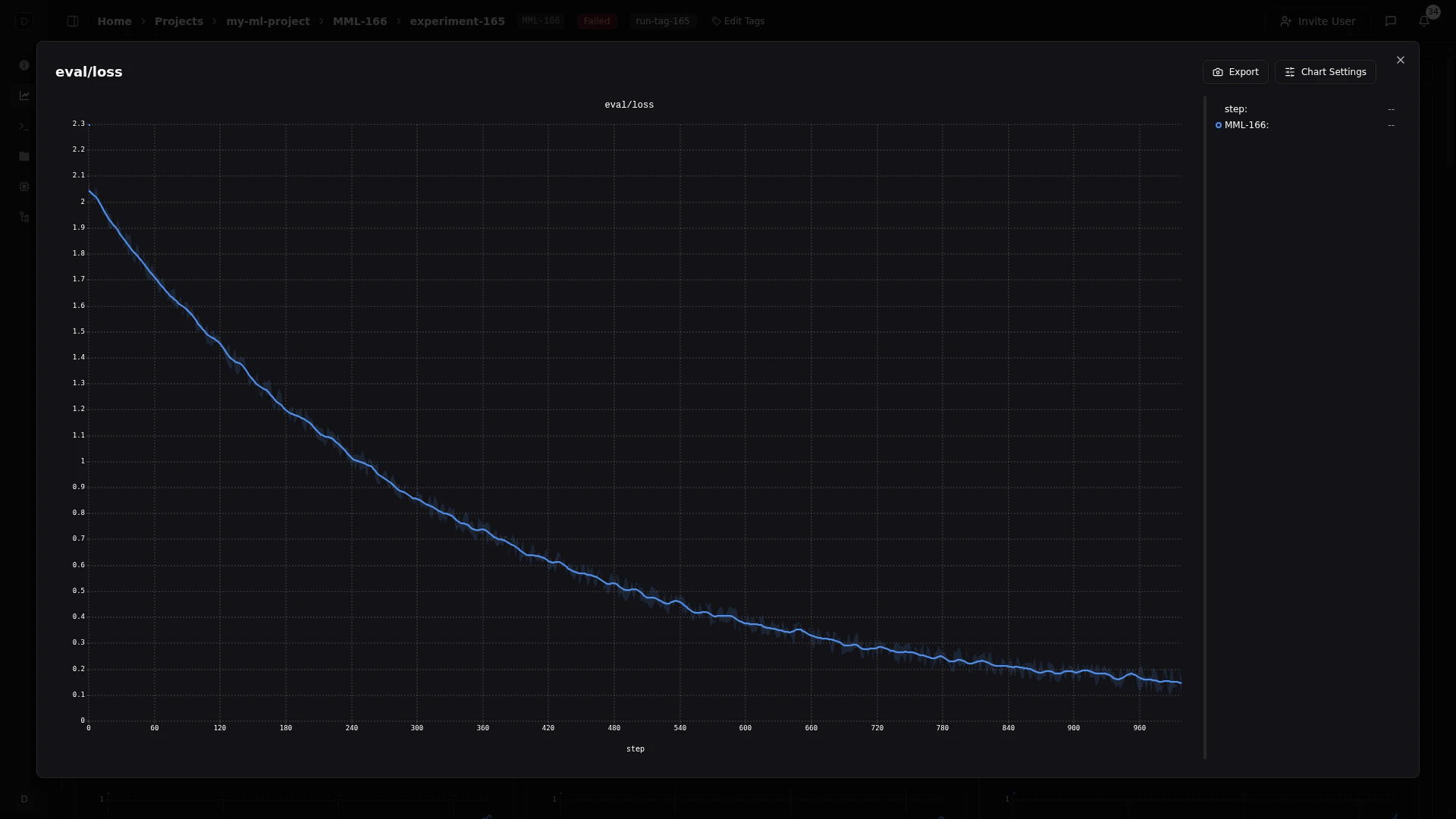 The fullscreen view provides:
* A larger canvas for detailed inspection
* A **resizable legend sidebar** on the right showing all runs with color indicators
* Click any entry in the legend sidebar to toggle that series' visibility — companion series (smoothing lines, min/max bands) toggle together automatically
* **Export** and **Chart Settings** buttons in the top-right corner
* The legend sidebar width is adjustable by dragging its edge, and persists across sessions
### Tooltip
When hovering over a line chart, a tooltip appears showing the values for all visible runs at the nearest step. The tooltip can be pinned in place for hands-free inspection, customized to show exactly the columns you need, and searched to find specific series.
#### Hovering
Move your cursor over any chart to see a floating tooltip with the current step and values for each run. The tooltip follows your cursor and updates in real time as you move along the X-axis. A vertical crosshair line indicates the exact step position.
#### Pinning
Click anywhere on a chart to **pin** the tooltip at that step. A pinned tooltip:
* Stays fixed in place while you scroll or interact with other charts
* Has a **blue border** to distinguish it from the hover tooltip
* Can be dismissed by clicking the **close button** (x) in the top-right corner
The fullscreen view provides:
* A larger canvas for detailed inspection
* A **resizable legend sidebar** on the right showing all runs with color indicators
* Click any entry in the legend sidebar to toggle that series' visibility — companion series (smoothing lines, min/max bands) toggle together automatically
* **Export** and **Chart Settings** buttons in the top-right corner
* The legend sidebar width is adjustable by dragging its edge, and persists across sessions
### Tooltip
When hovering over a line chart, a tooltip appears showing the values for all visible runs at the nearest step. The tooltip can be pinned in place for hands-free inspection, customized to show exactly the columns you need, and searched to find specific series.
#### Hovering
Move your cursor over any chart to see a floating tooltip with the current step and values for each run. The tooltip follows your cursor and updates in real time as you move along the X-axis. A vertical crosshair line indicates the exact step position.
#### Pinning
Click anywhere on a chart to **pin** the tooltip at that step. A pinned tooltip:
* Stays fixed in place while you scroll or interact with other charts
* Has a **blue border** to distinguish it from the hover tooltip
* Can be dismissed by clicking the **close button** (x) in the top-right corner
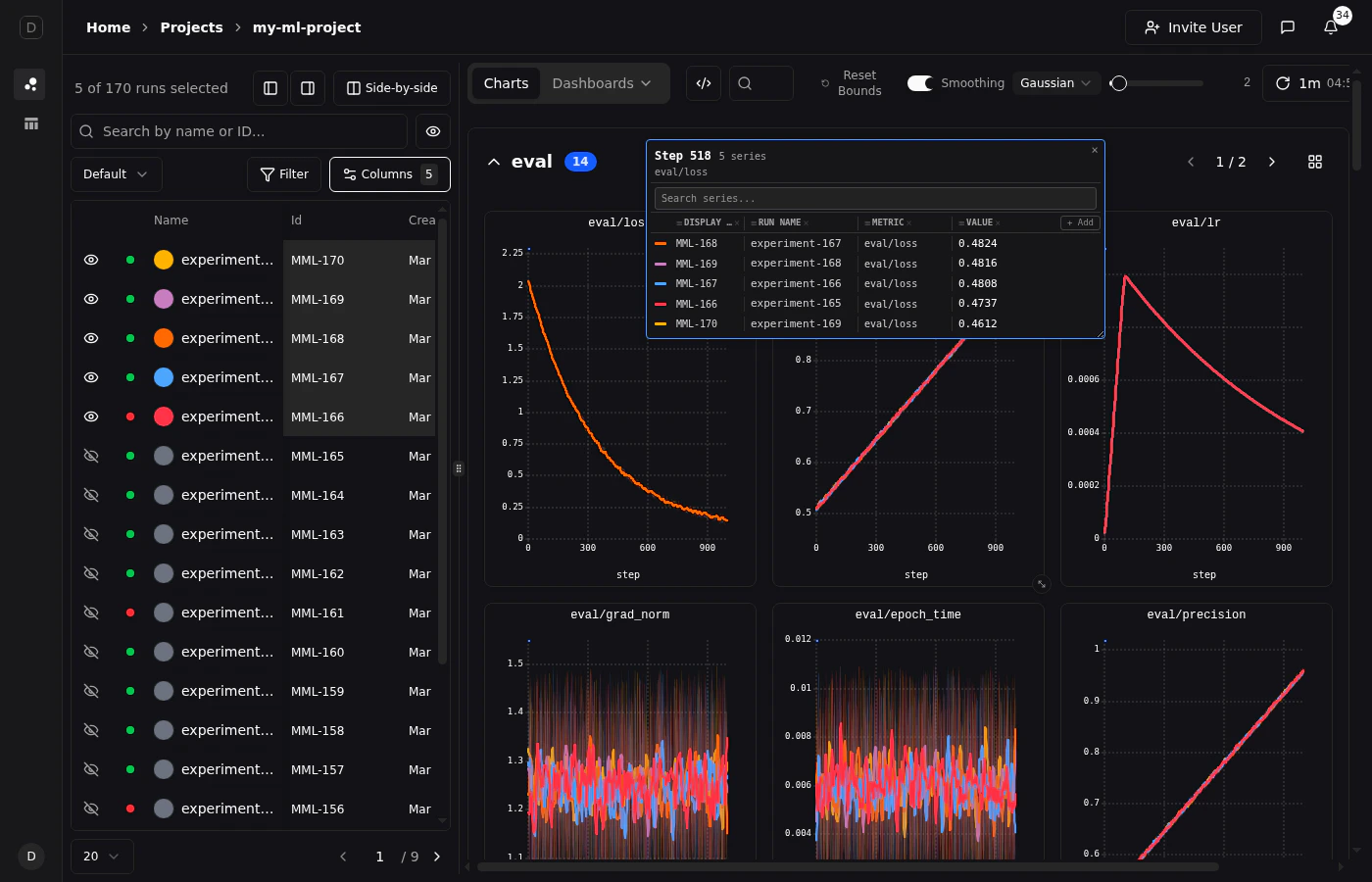 Only one tooltip can be pinned at a time. Pinning a new tooltip replaces the previous one.
#### Dragging and Resizing
Once pinned, the tooltip becomes fully interactive:
* **Drag** the tooltip by its header to reposition it anywhere on screen
* **Resize** the tooltip by dragging the handle in the bottom-right corner
This is useful when the tooltip overlaps important chart data or when you want to place it next to another chart for comparison.
#### Searching Series
The pinned tooltip includes a **search bar** at the top. Type to filter the list of series by run name, display ID, or metric name. This is especially helpful when comparing many runs and you need to find a specific one.
#### Customizing Columns
The pinned tooltip displays columns for each piece of run information. By default, it shows **Display ID**, **Run Name**, **Metric**, and **Value**.
You can customize which columns appear:
* Click the **x** button on any column header to remove it
* Click the **+ Add** button to restore removed columns
Column preferences are saved to your browser and persist across sessions.
### Chart Settings
Pluto provides two levels of chart configuration:
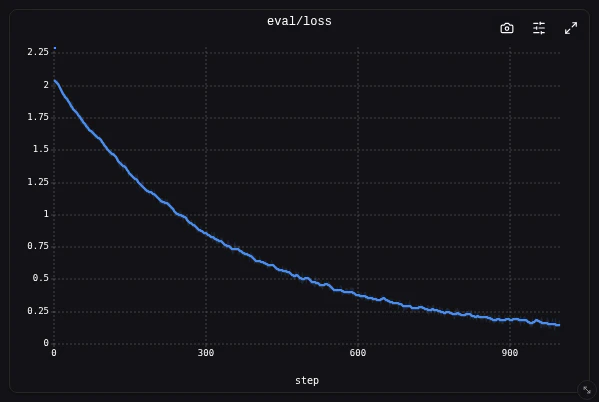
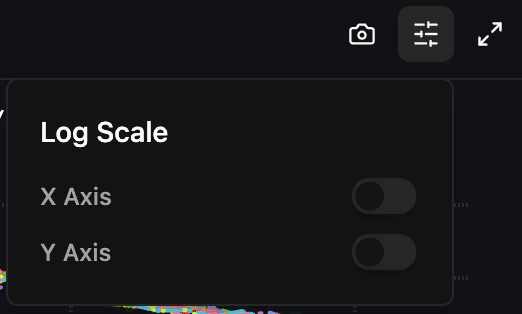
* **Per-chart toolbar** — Hover over any chart to reveal three buttons in the top-right corner: an **export menu** (copy to clipboard or download PNG), a **chart settings popover** (log scale toggles), and an **expand button** (fullscreen view).
Only one tooltip can be pinned at a time. Pinning a new tooltip replaces the previous one.
#### Dragging and Resizing
Once pinned, the tooltip becomes fully interactive:
* **Drag** the tooltip by its header to reposition it anywhere on screen
* **Resize** the tooltip by dragging the handle in the bottom-right corner
This is useful when the tooltip overlaps important chart data or when you want to place it next to another chart for comparison.
#### Searching Series
The pinned tooltip includes a **search bar** at the top. Type to filter the list of series by run name, display ID, or metric name. This is especially helpful when comparing many runs and you need to find a specific one.
#### Customizing Columns
The pinned tooltip displays columns for each piece of run information. By default, it shows **Display ID**, **Run Name**, **Metric**, and **Value**.
You can customize which columns appear:
* Click the **x** button on any column header to remove it
* Click the **+ Add** button to restore removed columns
Column preferences are saved to your browser and persist across sessions.
### Chart Settings
Pluto provides two levels of chart configuration:
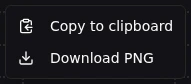
* **Per-chart toolbar** — Hover over any chart to reveal three buttons in the top-right corner: an **export menu** (copy to clipboard or download PNG), a **chart settings popover** (log scale toggles), and an **expand button** (fullscreen view).
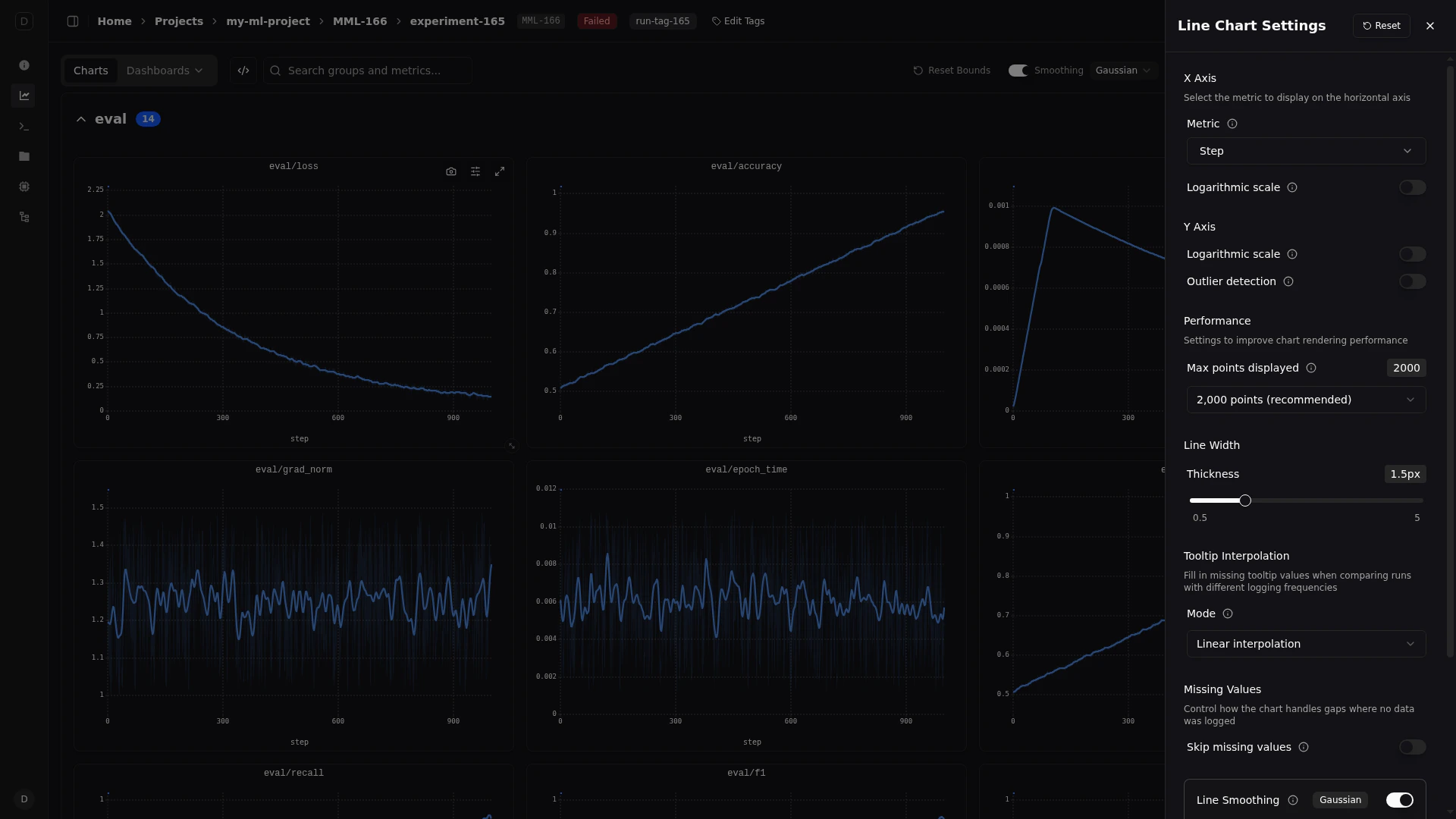
 * **Line Chart Settings drawer** — Accessible via the settings icon in the main toolbar. Configure global settings like X-axis metric, line width, max series, tooltip interpolation, and smoothing.
 #### Export
**Copy to Clipboard** — Copy the current chart as an image directly to your clipboard for pasting into documents, Slack messages, or presentations.
**Download as PNG** — Download a high-resolution PNG of the chart to your local machine.
#### Export
**Copy to Clipboard** — Copy the current chart as an image directly to your clipboard for pasting into documents, Slack messages, or presentations.
**Download as PNG** — Download a high-resolution PNG of the chart to your local machine.
 #### X Axis
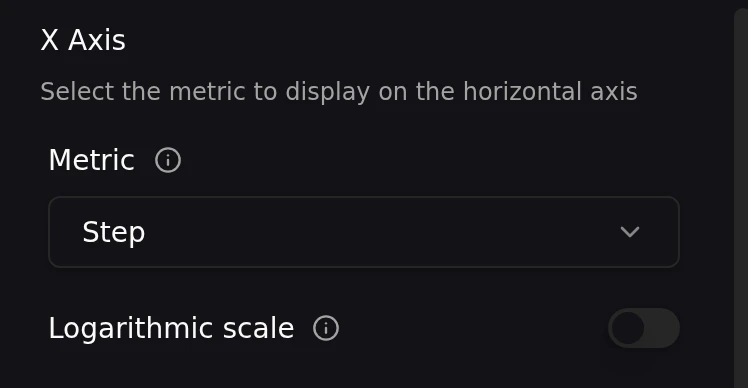
**Custom Metric** — By default, charts use the step number as the X-axis. You can select any logged metric as the X-axis instead using the searchable combobox. This is available in both the line settings drawer and the dashboard widget configuration.
**Logarithmic Scale** — Toggle logarithmic scaling on the X-axis.
#### X Axis
**Custom Metric** — By default, charts use the step number as the X-axis. You can select any logged metric as the X-axis instead using the searchable combobox. This is available in both the line settings drawer and the dashboard widget configuration.
**Logarithmic Scale** — Toggle logarithmic scaling on the X-axis.
 #### Y Axis
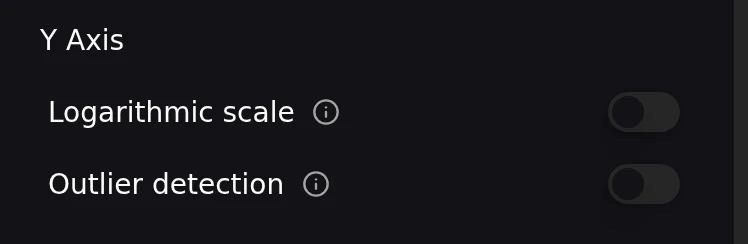
**Logarithmic Scale** — Toggle logarithmic scaling on the Y-axis.
**Outlier Detection** — Toggle automatic outlier detection on the Y-axis. When enabled, extreme outlier values are excluded from the Y-axis range calculation, preventing a single spike from compressing the rest of your data into a narrow band.
#### Y Axis
**Logarithmic Scale** — Toggle logarithmic scaling on the Y-axis.
**Outlier Detection** — Toggle automatic outlier detection on the Y-axis. When enabled, extreme outlier values are excluded from the Y-axis range calculation, preventing a single spike from compressing the rest of your data into a narrow band.
 #### Line Display
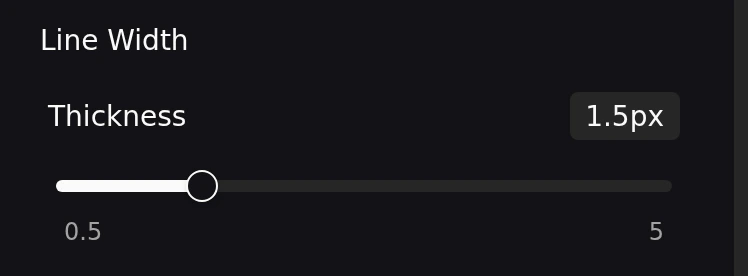
**Line Width** — Adjust the line width using a slider that ranges from 0.5px to 5px (default: 1.5px). This setting is persisted globally across all charts.
#### Line Display
**Line Width** — Adjust the line width using a slider that ranges from 0.5px to 5px (default: 1.5px). This setting is persisted globally across all charts.
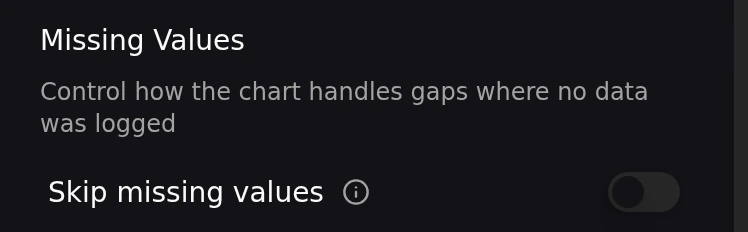
 **Skip Missing Values** — Toggle this option to skip gaps in data instead of interpolating between them. When enabled, the chart will not draw lines connecting data points across missing values, preventing misleading visual connections across data gaps.
 #### Interpolation
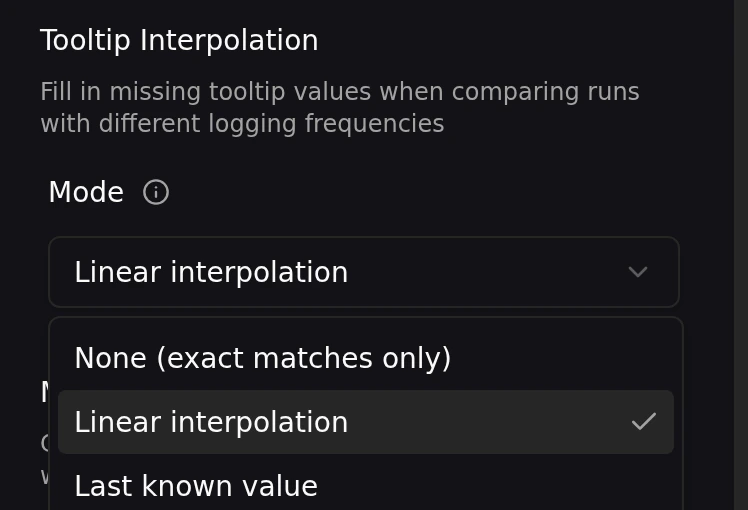
When comparing runs that log at different step intervals, the tooltip may need to estimate values between data points. You can control this behavior in the line chart settings drawer:
* **None** — Only shows values at exact data points
* **Linear** — Interpolates linearly between neighboring data points
* **Last known** — Shows the most recent recorded value before the cursor position
#### Interpolation
When comparing runs that log at different step intervals, the tooltip may need to estimate values between data points. You can control this behavior in the line chart settings drawer:
* **None** — Only shows values at exact data points
* **Linear** — Interpolates linearly between neighboring data points
* **Last known** — Shows the most recent recorded value before the cursor position
 #### Performance
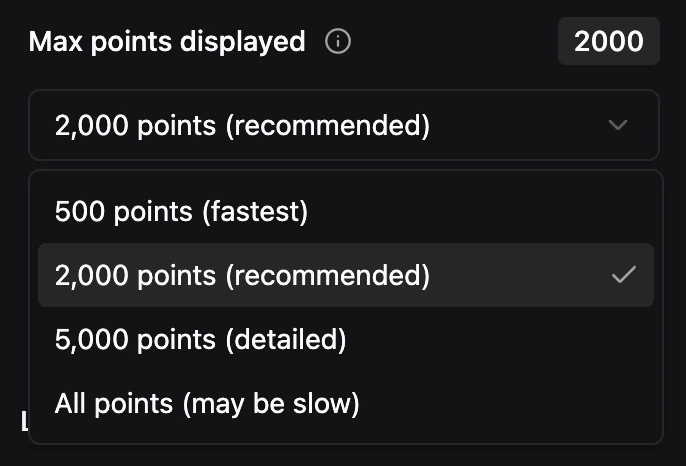
**Max Points Displayed** — Control how many data points are rendered per series. Choose from preset options: 500 points (fastest), 2,000 points (recommended), 5,000 points (detailed), or all points (may be slow). The default is 2,000 points.
#### Performance
**Max Points Displayed** — Control how many data points are rendered per series. Choose from preset options: 500 points (fastest), 2,000 points (recommended), 5,000 points (detailed), or all points (may be slow). The default is 2,000 points.
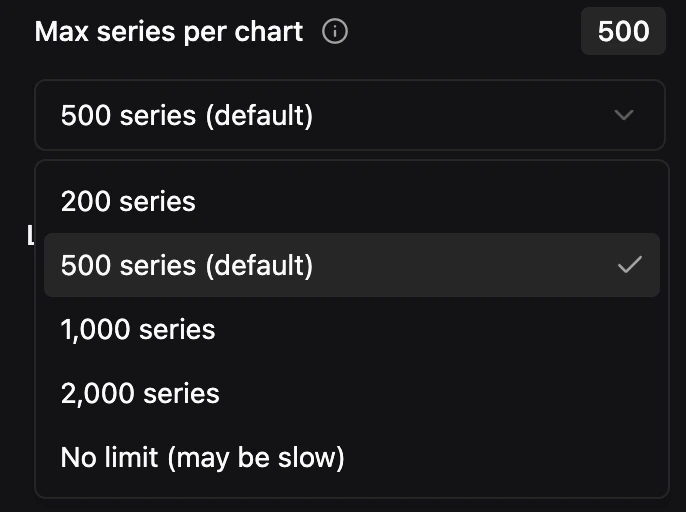
 **Max Series per Chart** — Set the maximum number of series a single chart will render. When a chart exceeds this limit, a warning is displayed instead of rendering the chart. The default is **500 series**. Select **No limit** to disable the cap entirely (may be slow).
 #### Step Deduplication
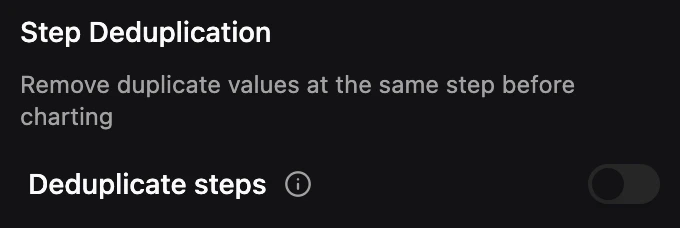
When multiple values are logged at the same step (e.g., from distributed training ranks or resumed runs), this setting uses the last-logged value per step instead of averaging all values. This eliminates artificial min/max spread in confidence bands caused by duplicate logging.
#### Step Deduplication
When multiple values are logged at the same step (e.g., from distributed training ranks or resumed runs), this setting uses the last-logged value per step instead of averaging all values. This eliminates artificial min/max spread in confidence bands caused by duplicate logging.
 #### Smoothing
Smoothing helps you see the underlying trend in noisy metrics by applying a mathematical filter to the raw data. For details on smoothing algorithms and controls, see [Smoothing](/pluto/smoothing).
#### Smoothing
Smoothing helps you see the underlying trend in noisy metrics by applying a mathematical filter to the raw data. For details on smoothing algorithms and controls, see [Smoothing](/pluto/smoothing).