> ## Documentation Index
> Fetch the complete documentation index at: https://docs.trainy.ai/llms.txt
> Use this file to discover all available pages before exploring further.
# Audio
> Log and view audio data in Pluto
## Logging
Audio files can be logged via a file path or a NumPy array containing audio data shaped as `frames × channels`.
To log audio, instantiate the `pluto.Audio` class:
```python theme={null}
audio = pluto.Audio(
data=Union[str, np.ndarray],
rate=int | None = 48000,
caption=str | None = None,
)
pluto.log({"audio/0": audio}, step=step)
```
| **Parameter** | **Type** | **Description** |
| ------------- | ------------------------ | ----------------------------------------------------------------------- |
| `data` | `Union[str, np.ndarray]` | The audio data to log. Can be a path to an audio file or a NumPy array. |
| `rate` | `int` | The sample rate of the audio data. Defaults to 48000. |
| `caption` | `str` | A caption for the audio. |
### Examples
#### Logging from File Paths
```python theme={null}
import httpx
r = httpx.get(
"https://actions.google.com/sounds/v1/alarms/digital_watch_alarm_long.ogg"
)
with open(f"test.ogg", "wb") as f:
f.write(r.content)
pluto.log({"audio": pluto.Audio(data="test.ogg")}, step=step)
```
#### Logging from NumPy Arrays
```python theme={null}
data = np.array([[1, 1, 1], [1, 1, 1]], dtype=np.float32)
pluto.log({"audio": pluto.Audio(data=data)}, step=step)
```
## Viewing
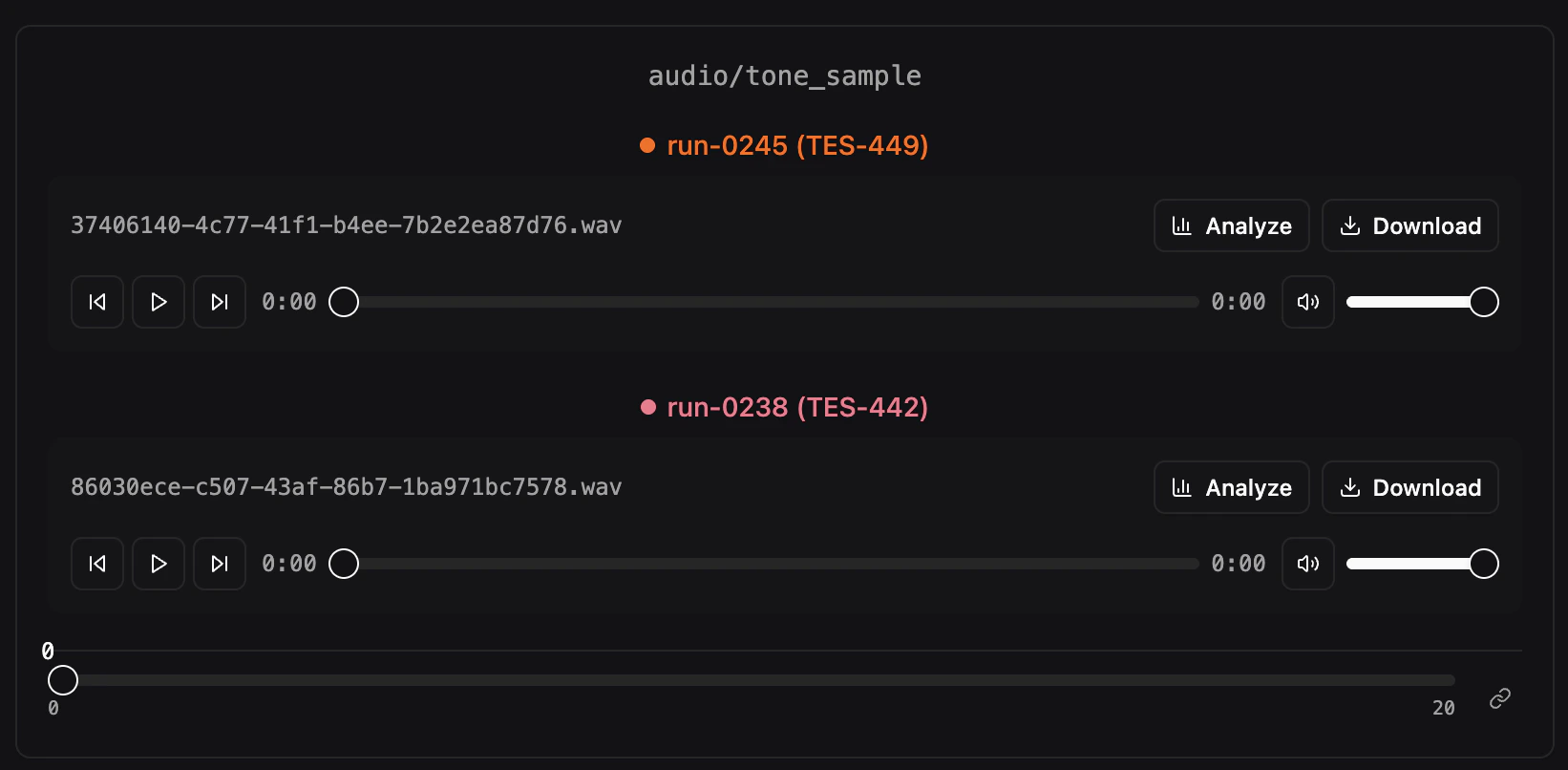
Logged audio files appear as player widgets with playback controls, volume adjustment, and per-file **Analyze** and **Download** buttons. When comparing multiple runs, each audio card shows the run name with its assigned color.
 ### Playback Controls
Each audio player includes:
* **Play / Pause** with a progress slider you can drag to seek
* **Skip forward / back** buttons (5-second jumps)
* **Volume slider** with mute toggle
* **Download** — saves the audio file locally
* **Analyze** — opens the audio analysis dialog (see below)
### Step Navigation
If you log audio at multiple training steps, use the step slider below the players to browse through different steps. This is useful for tracking how generated audio (e.g., text-to-speech) improves over the course of training.
When multiple audio groups are displayed in the same section, their step sliders can be **linked** so that changing the step on one group changes all of them simultaneously. Click the **lock icon** on the step navigator to toggle sync on or off.
### Multi-Sample Logging
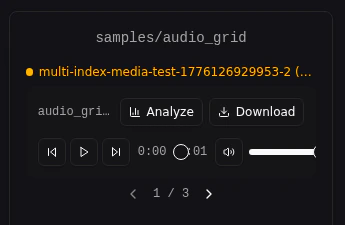
If you log a list of clips at the same step under one log name (e.g. `pluto.log({"samples": [pluto.Audio(a), pluto.Audio(b)]}, step=10)`), every clip renders inside the same card with a per-cell `◀ i / N ▶` nav row above the player. The same nav row also appears next to the filename in the fullscreen audio viewer, and the inline and fullscreen states stay in sync.
### Playback Controls
Each audio player includes:
* **Play / Pause** with a progress slider you can drag to seek
* **Skip forward / back** buttons (5-second jumps)
* **Volume slider** with mute toggle
* **Download** — saves the audio file locally
* **Analyze** — opens the audio analysis dialog (see below)
### Step Navigation
If you log audio at multiple training steps, use the step slider below the players to browse through different steps. This is useful for tracking how generated audio (e.g., text-to-speech) improves over the course of training.
When multiple audio groups are displayed in the same section, their step sliders can be **linked** so that changing the step on one group changes all of them simultaneously. Click the **lock icon** on the step navigator to toggle sync on or off.
### Multi-Sample Logging
If you log a list of clips at the same step under one log name (e.g. `pluto.log({"samples": [pluto.Audio(a), pluto.Audio(b)]}, step=10)`), every clip renders inside the same card with a per-cell `◀ i / N ▶` nav row above the player. The same nav row also appears next to the filename in the fullscreen audio viewer, and the inline and fullscreen states stay in sync.
 ### Fullscreen View
Click the **expand** button on any audio card's toolbar to open it in fullscreen. The fullscreen view displays the full multi-run comparison at viewport size. Use arrow keys to navigate between steps.
### Audio Analysis
Click **Analyze** on any audio player to open a dialog with three tabs:
* **Spectrum** — Real-time frequency spectrum visualization that animates during playback
* **Waveform** — Time-domain waveform drawn from the audio buffer
* **Statistics** — Peak amplitude, RMS level, duration, sample rate, number of channels, and dynamic range
### Fullscreen View
Click the **expand** button on any audio card's toolbar to open it in fullscreen. The fullscreen view displays the full multi-run comparison at viewport size. Use arrow keys to navigate between steps.
### Audio Analysis
Click **Analyze** on any audio player to open a dialog with three tabs:
* **Spectrum** — Real-time frequency spectrum visualization that animates during playback
* **Waveform** — Time-domain waveform drawn from the audio buffer
* **Statistics** — Peak amplitude, RMS level, duration, sample rate, number of channels, and dynamic range