> ## Documentation Index
> Fetch the complete documentation index at: https://docs.trainy.ai/llms.txt
> Use this file to discover all available pages before exploring further.
# The Runs Table
> Organize the runs table — columns, grouping, visibility, deleting, filtering, sorting, search, and preset views.
The runs table — the panel on the left of a project — is where you find, organize, and select the runs you want to work with. It supports extensive customization to help you cut through a project with many experiments.
 ## Column Header Menus
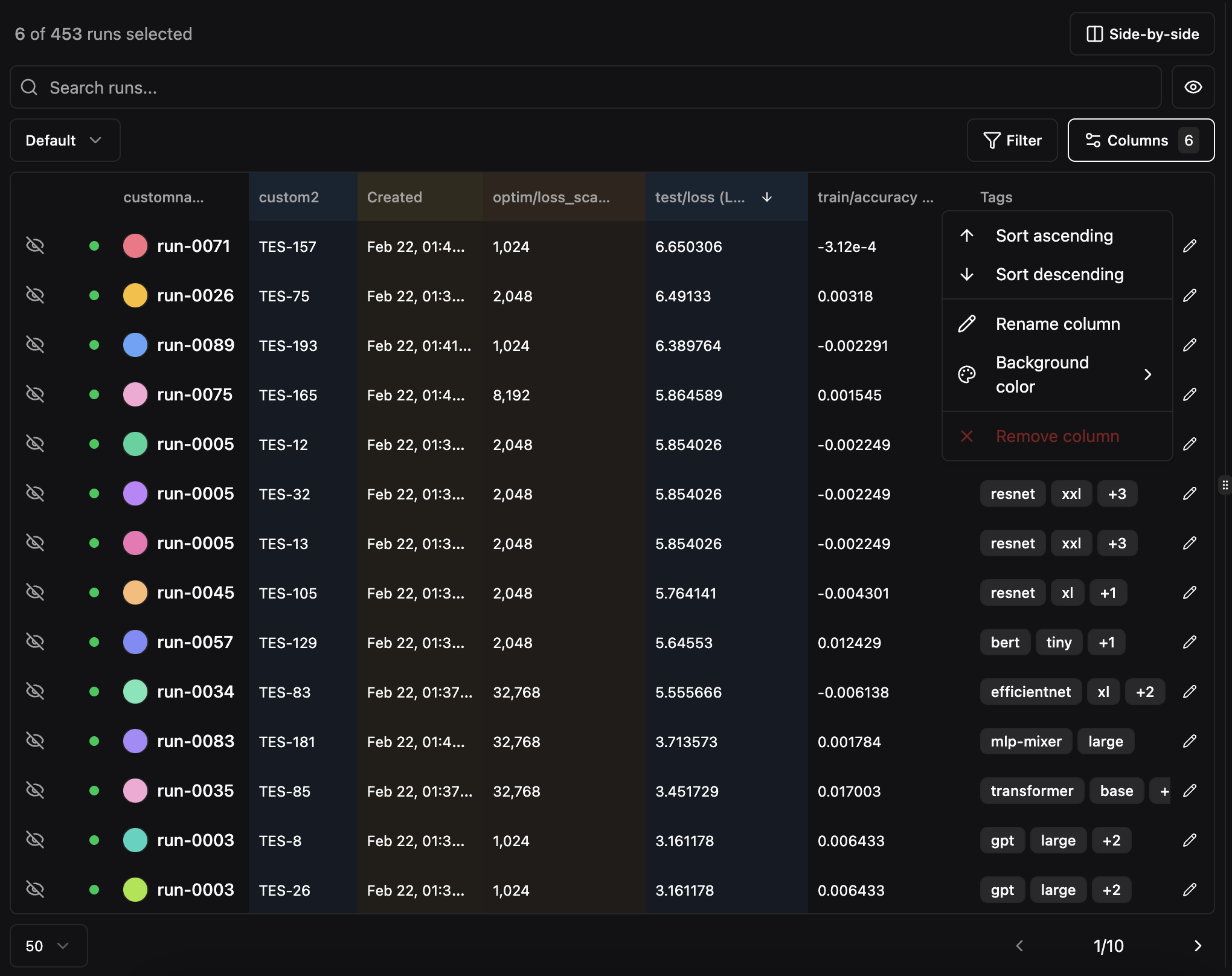
Right-click or click the menu icon on any column header to access options:
* **Sort** ascending or descending
* **Rename** the column display name
* **Set column color** for visual grouping
* **Pin column** to the left or right side of the table to keep it visible during horizontal scrolling. The **Select**, **Status**, and **Name** columns are pinned by default.
## Column Header Menus
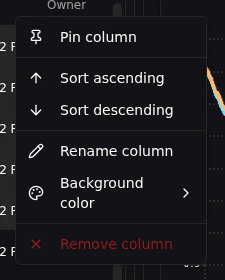
Right-click or click the menu icon on any column header to access options:
* **Sort** ascending or descending
* **Rename** the column display name
* **Set column color** for visual grouping
* **Pin column** to the left or right side of the table to keep it visible during horizontal scrolling. The **Select**, **Status**, and **Name** columns are pinned by default.
 You can also **drag and drop** column headers to reorder them.
## Column Picker
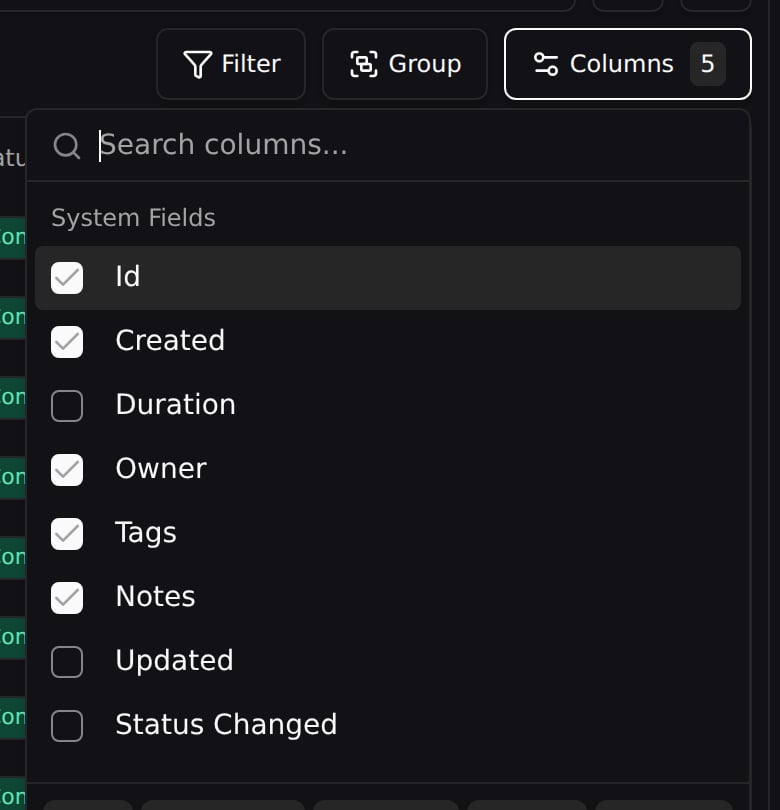
Click the **Columns** button to choose which columns are visible in the runs table. The default columns are Status, Name, Id, Created, Duration, Owner, Tags, and Notes, but you can add or remove any column.
You can also **drag and drop** column headers to reorder them.
## Column Picker
Click the **Columns** button to choose which columns are visible in the runs table. The default columns are Status, Name, Id, Created, Duration, Owner, Tags, and Notes, but you can add or remove any column.
 ## Grouping Runs
Group the runs table into a **bucket tree** by any field the runs already carry.
Grouping runs is currently in alpha. Please send any feedback to [founders@trainy.ai](mailto:founders@trainy.ai)
### Grouping by a field
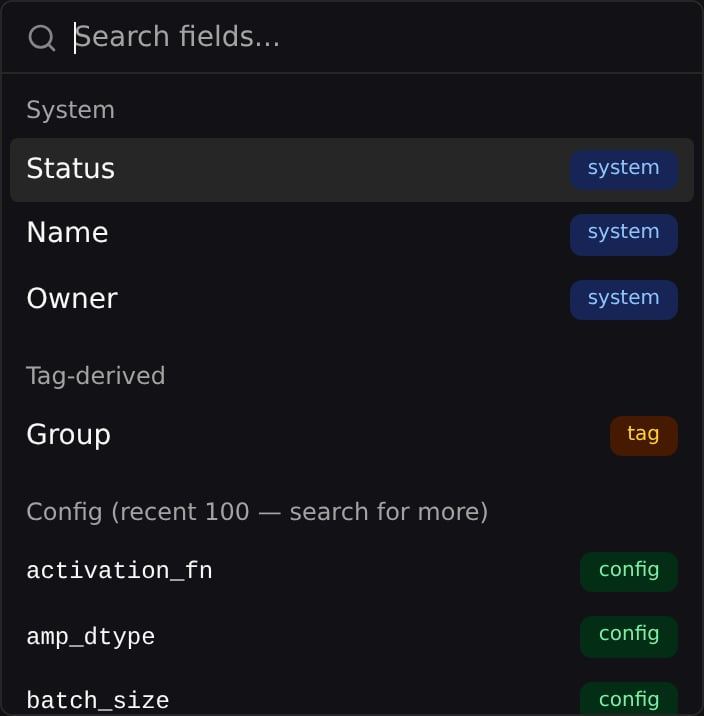
Click the **Group** button in the toolbar (between **Filter** and **Columns**) to open the *Group runs by* picker, then add a field. You can group by:
* **System** — a run's `Status`, `Name`, or `Owner`.
* **Tag-derived** — the `Group` field, which buckets runs by the value of their `group:` tag. A run tagged `group:resnet-sweep` lands in the `Group: resnet-sweep` bucket.
* **Config** — any value from a run's logged config (e.g. `batch_size`, `optimizer`). The picker lists the 100 most recent config keys; type in the search box to reach others.
* **System metadata** — any value from a run's system metadata (e.g. `gpu_count`), also searchable beyond the recent 100.
## Grouping Runs
Group the runs table into a **bucket tree** by any field the runs already carry.
Grouping runs is currently in alpha. Please send any feedback to [founders@trainy.ai](mailto:founders@trainy.ai)
### Grouping by a field
Click the **Group** button in the toolbar (between **Filter** and **Columns**) to open the *Group runs by* picker, then add a field. You can group by:
* **System** — a run's `Status`, `Name`, or `Owner`.
* **Tag-derived** — the `Group` field, which buckets runs by the value of their `group:` tag. A run tagged `group:resnet-sweep` lands in the `Group: resnet-sweep` bucket.
* **Config** — any value from a run's logged config (e.g. `batch_size`, `optimizer`). The picker lists the 100 most recent config keys; type in the search box to reach others.
* **System metadata** — any value from a run's system metadata (e.g. `gpu_count`), also searchable beyond the recent 100.
 Once grouping is active the **Group** button shows a badge with the number of grouping levels, and a **Clear** button in the picker removes them all.
### Multi-level grouping
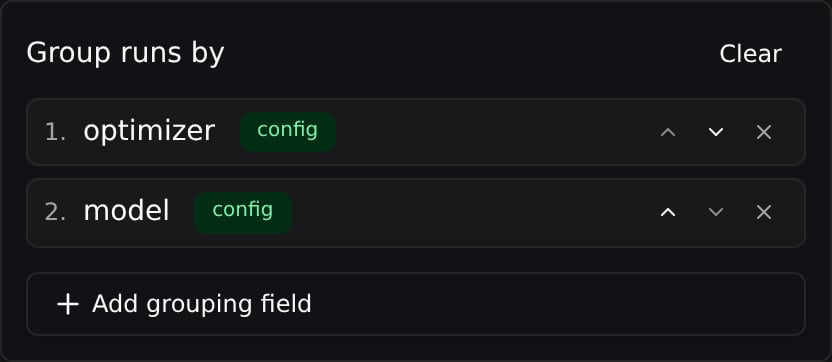
Grouping is a stack of fields. Click **Add grouping field** to add another level (up to **5**). The first field is the outermost bucket and each subsequent field nests inside it. Reorder levels with the up/down arrows on a chip, swap a level's field by clicking it, or remove a level with its ✕.
Once grouping is active the **Group** button shows a badge with the number of grouping levels, and a **Clear** button in the picker removes them all.
### Multi-level grouping
Grouping is a stack of fields. Click **Add grouping field** to add another level (up to **5**). The first field is the outermost bucket and each subsequent field nests inside it. Reorder levels with the up/down arrows on a chip, swap a level's field by clicking it, or remove a level with its ✕.
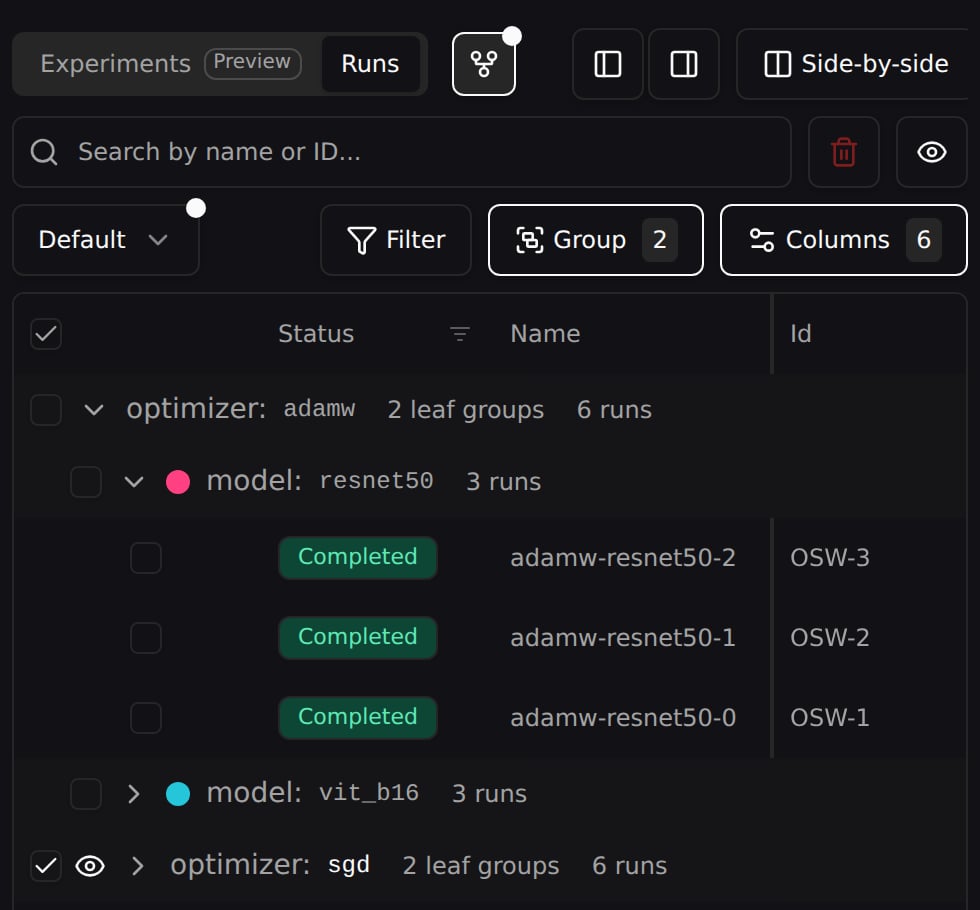
 Grouped mode replaces the flat run list with a tree of buckets. Expand one to reveal its sub-buckets and, at the deepest level, the runs themselves.
 ## Run Visibility
**Select a run** — check its box in the leftmost column — to plot it on the charts. The selected set is also what bulk actions like delete operate on. You can select up to 100 runs at once.
* The header checkbox selects or clears every run on the current page.
* **Shift-click** a checkbox to select the whole range between it and the last box you clicked.
## Run Visibility
**Select a run** — check its box in the leftmost column — to plot it on the charts. The selected set is also what bulk actions like delete operate on. You can select up to 100 runs at once.
* The header checkbox selects or clears every run on the current page.
* **Shift-click** a checkbox to select the whole range between it and the last box you clicked.
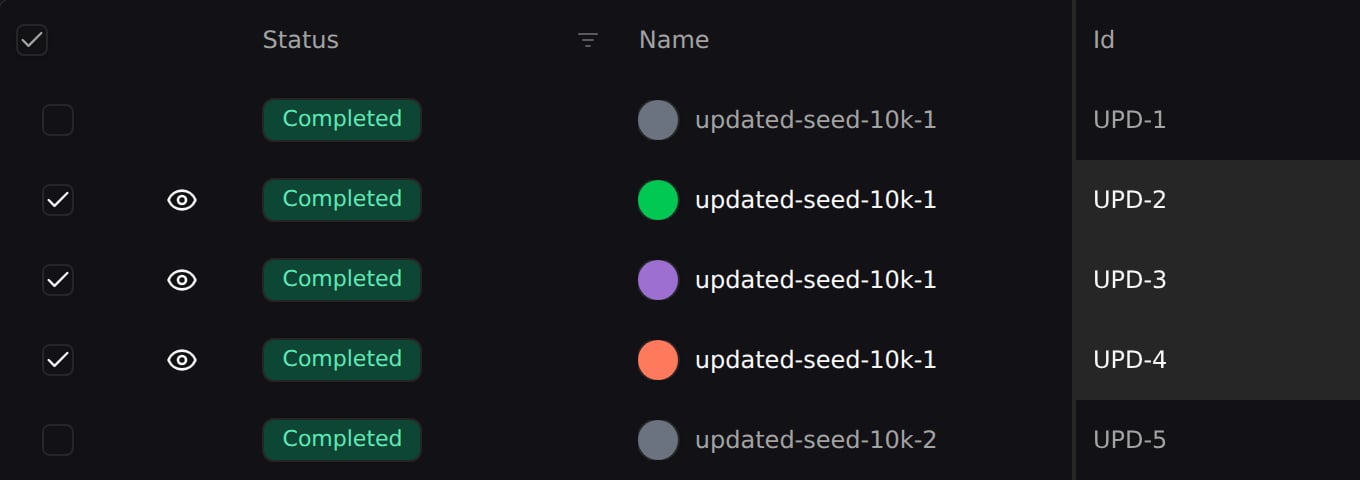 Once a run is selected, an **eye icon** appears next to its checkbox to toggle whether it's drawn on the charts — without deselecting it:
* **Hide from charts** — click the eye on a visible run to mute it on the charts while keeping it selected. Useful when a noisy run is obscuring the trends you're comparing.
* **Show on charts** — click the eye-off icon on a hidden run to draw it again.
Once a run is selected, an **eye icon** appears next to its checkbox to toggle whether it's drawn on the charts — without deselecting it:
* **Hide from charts** — click the eye on a visible run to mute it on the charts while keeping it selected. Useful when a noisy run is obscuring the trends you're comparing.
* **Show on charts** — click the eye-off icon on a hidden run to draw it again.
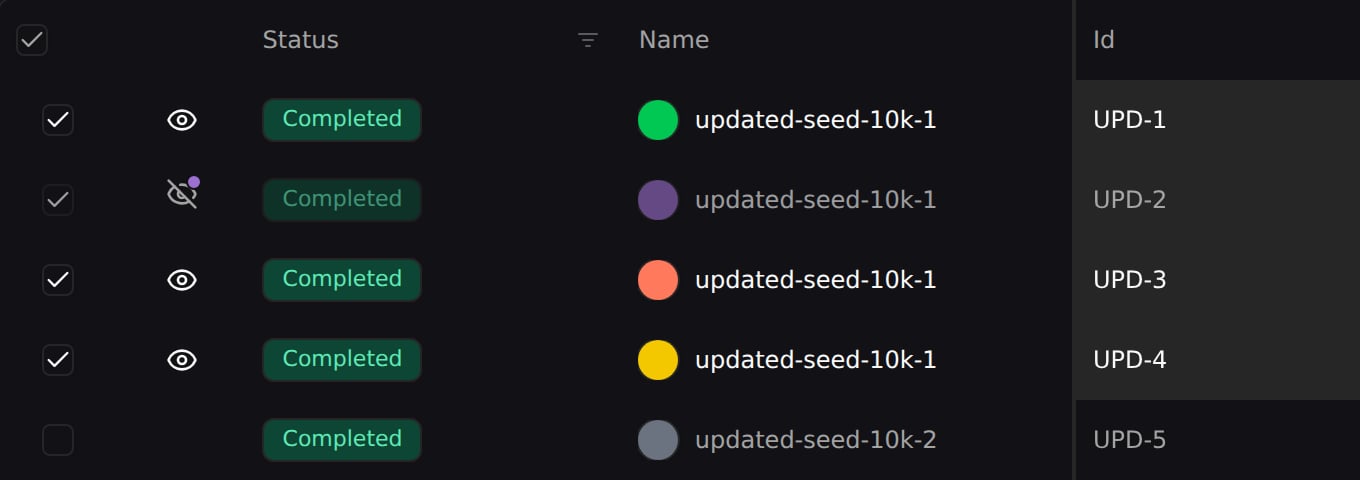 Hidden runs keep their assigned color so you can toggle them back quickly. The selected set persists in the URL as `?runs=` and hidden runs as `?hidden=`, so links are shareable.
To manage the whole selection at once, use the **Visibility options** dropdown above the table:
Hidden runs keep their assigned color so you can toggle them back quickly. The selected set persists in the URL as `?runs=` and hidden runs as `?hidden=`, so links are shareable.
To manage the whole selection at once, use the **Visibility options** dropdown above the table:
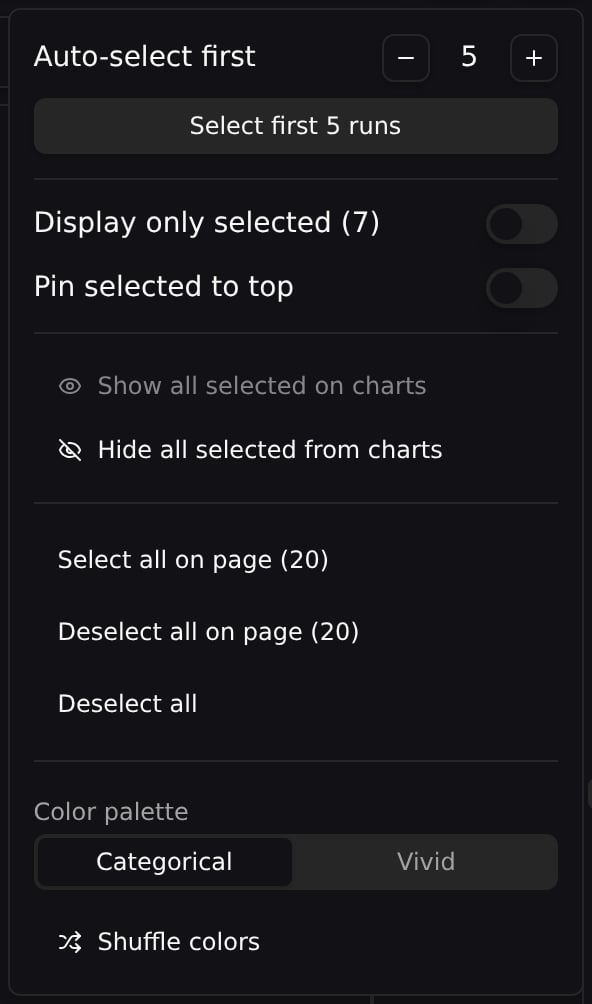 * **Show all selected on charts** / **Hide all selected from charts** — mute or restore every selected run at once.
* **Display only selected** — hide unselected runs from the table.
* **Pin selected to top** — float the selected runs above the rest.
* **Auto-select first N** — select the top N runs in one click.
* **Deselect all**, plus **color palette** and **shuffle colors** controls.
## Deleting Runs
To prune failed or junk runs, select them and click the **trash icon** next to the search box. It stays disabled until at least one run is checked, and its tooltip tells you how many will go.
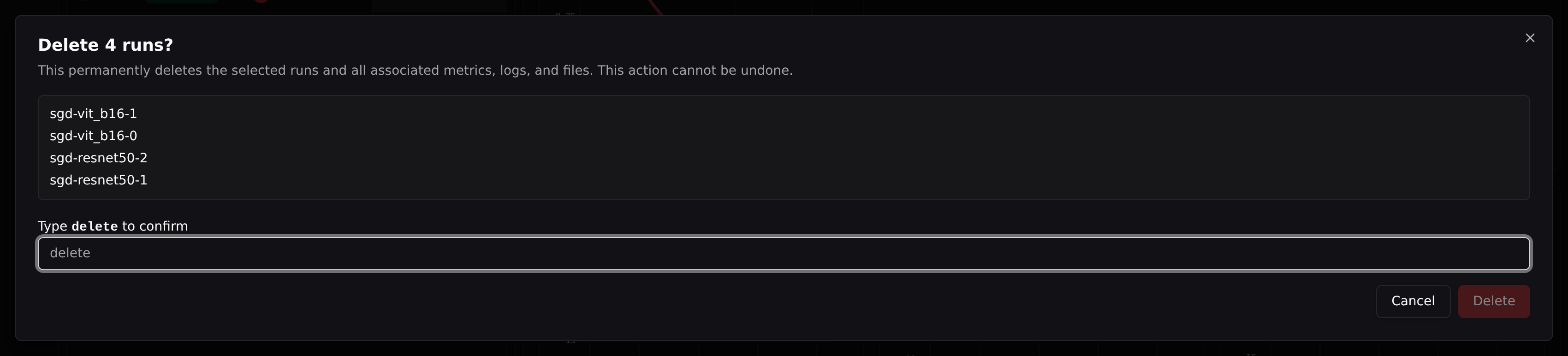
Deletion is **permanent**: it removes the runs along with all of their metrics, logs, and files, and it cannot be undone. Pluto previews the runs you're about to remove and asks you to type `delete` to confirm. Once deleted, the runs are dropped from your selection and disappear from the charts.
* **Show all selected on charts** / **Hide all selected from charts** — mute or restore every selected run at once.
* **Display only selected** — hide unselected runs from the table.
* **Pin selected to top** — float the selected runs above the rest.
* **Auto-select first N** — select the top N runs in one click.
* **Deselect all**, plus **color palette** and **shuffle colors** controls.
## Deleting Runs
To prune failed or junk runs, select them and click the **trash icon** next to the search box. It stays disabled until at least one run is checked, and its tooltip tells you how many will go.
Deletion is **permanent**: it removes the runs along with all of their metrics, logs, and files, and it cannot be undone. Pluto previews the runs you're about to remove and asks you to type `delete` to confirm. Once deleted, the runs are dropped from your selection and disappear from the charts.
 Runs [forked](/pluto/forking) from a deleted run are **not** deleted — they simply lose their fork parent.
Organization **owners** and **admins** can delete any run in the org. **Members** can only delete runs they created — if the batch includes a run created by someone else, the entire delete is rejected.
### Deleting a whole project
To remove an entire project rather than individual runs, go to the **projects list**, hover the project's row, and click its **trash icon**. Deleting a project is **owner/admin only** and wipes *every* run in it — including runs created by other members — along with all their metrics, logs, files, and saved dashboards. As with runs, it's permanent and asks you to type the project's name to confirm.
## Filtering and Sorting
Click the **Filter** button to open the filter dropdown. The filter system is type-aware, offering different operators depending on the column type.
Runs [forked](/pluto/forking) from a deleted run are **not** deleted — they simply lose their fork parent.
Organization **owners** and **admins** can delete any run in the org. **Members** can only delete runs they created — if the batch includes a run created by someone else, the entire delete is rejected.
### Deleting a whole project
To remove an entire project rather than individual runs, go to the **projects list**, hover the project's row, and click its **trash icon**. Deleting a project is **owner/admin only** and wipes *every* run in it — including runs created by other members — along with all their metrics, logs, files, and saved dashboards. As with runs, it's permanent and asks you to type the project's name to confirm.
## Filtering and Sorting
Click the **Filter** button to open the filter dropdown. The filter system is type-aware, offering different operators depending on the column type.
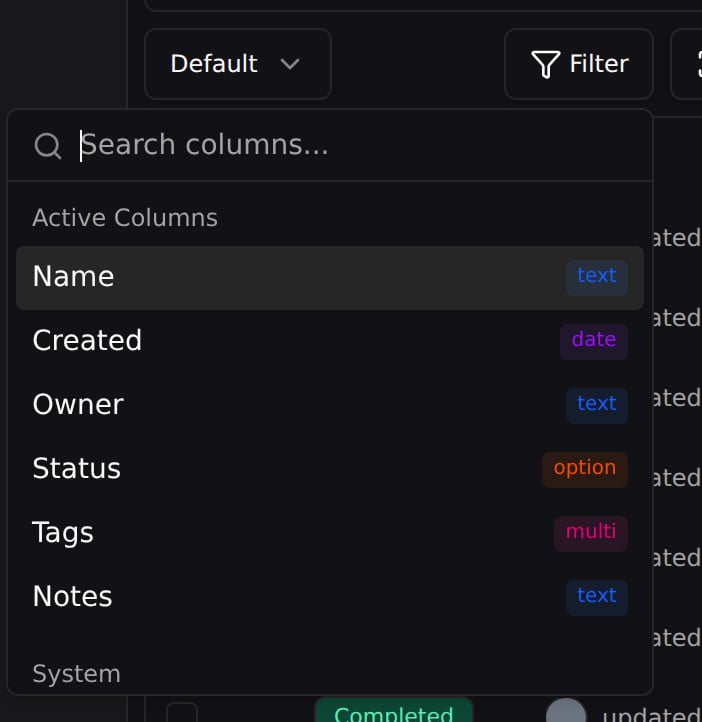 You can chain multiple conditions together with AND logic.
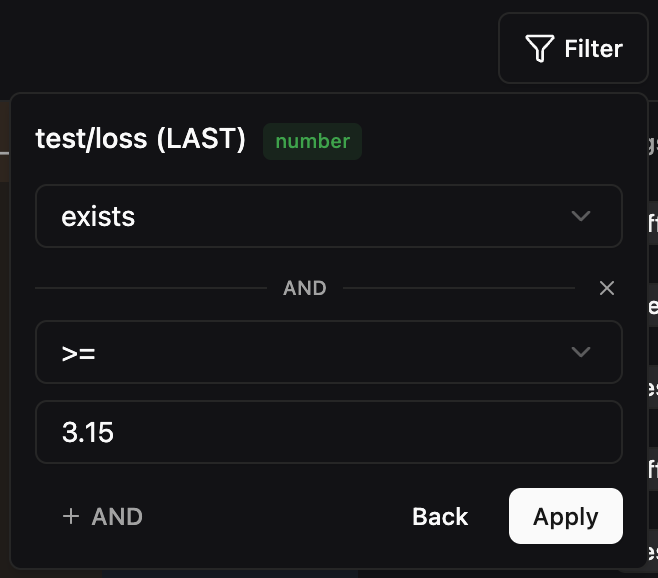 Active filters appear as chips below the toolbar. Click a chip to edit or remove the filter.
Sorting can be applied from a **column header menu** — hover a column, open its menu, and choose **Sort ascending** or **Sort descending** — or by clicking a column header directly. This works for any column, including metric columns, so you can rank runs by a logged value.
Active filters appear as chips below the toolbar. Click a chip to edit or remove the filter.
Sorting can be applied from a **column header menu** — hover a column, open its menu, and choose **Sort ascending** or **Sort descending** — or by clicking a column header directly. This works for any column, including metric columns, so you can rank runs by a logged value.
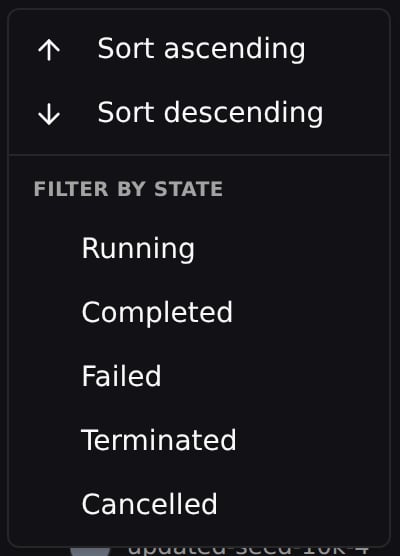
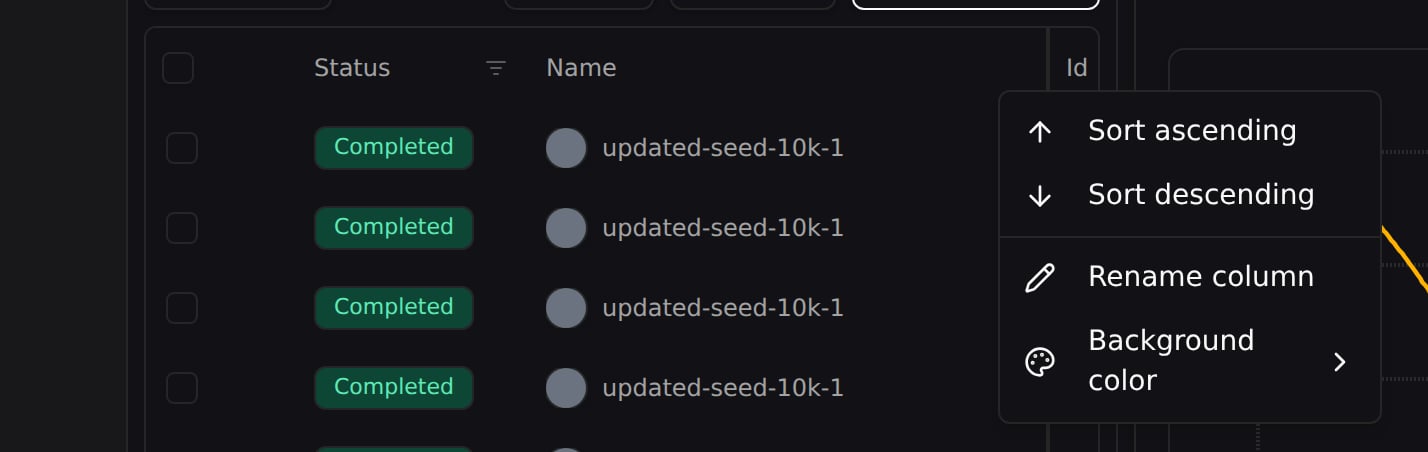 The **Status** column header has its own menu — click the filter icon on the header to sort by state or filter the table to specific run states: **Running**, **Completed**, **Failed**, **Terminated**, or **Cancelled**. These state filters share the same filter set as the Filter button, so the two stay in sync.
 ## Searching Runs
The **Search by name or ID** box above the table works in two ways, depending on whether your view is constrained.
### Plain search
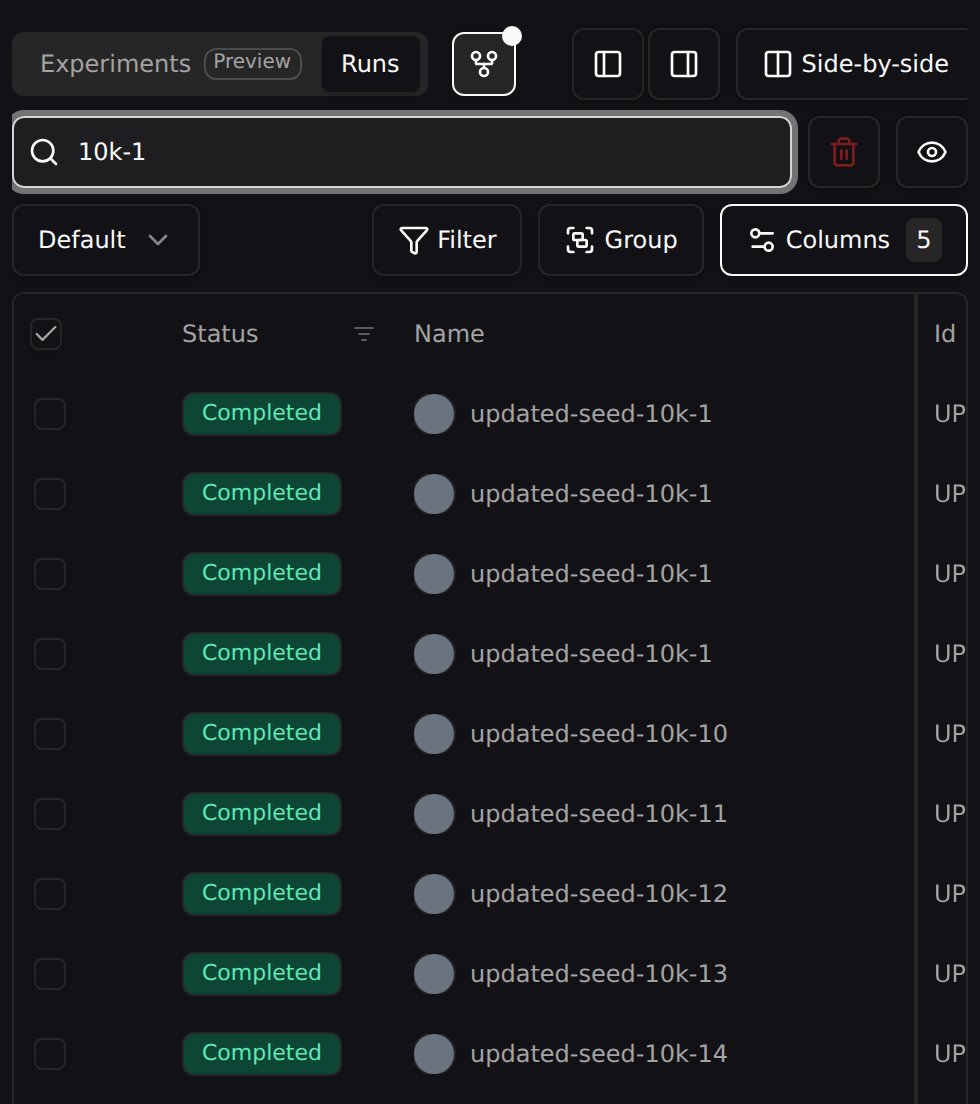
When nothing is hiding runs — no filter, and the whole table is on show — typing simply narrows the list to the rows that match your query.
## Searching Runs
The **Search by name or ID** box above the table works in two ways, depending on whether your view is constrained.
### Plain search
When nothing is hiding runs — no filter, and the whole table is on show — typing simply narrows the list to the rows that match your query.
 ### Finding runs outside the current view
The moment your view is constrained, a plain narrow-down would silently miss any match your own view is hiding. So when the table is constrained by **any** of:
* an active **filter**
* **Display only selected**
* **Pin selected to top**
…the search *also* surfaces an **Other matches — outside current view** dropdown beneath the box, listing the matches your view is hiding. You can pull one into your selection without tearing down the view you built.
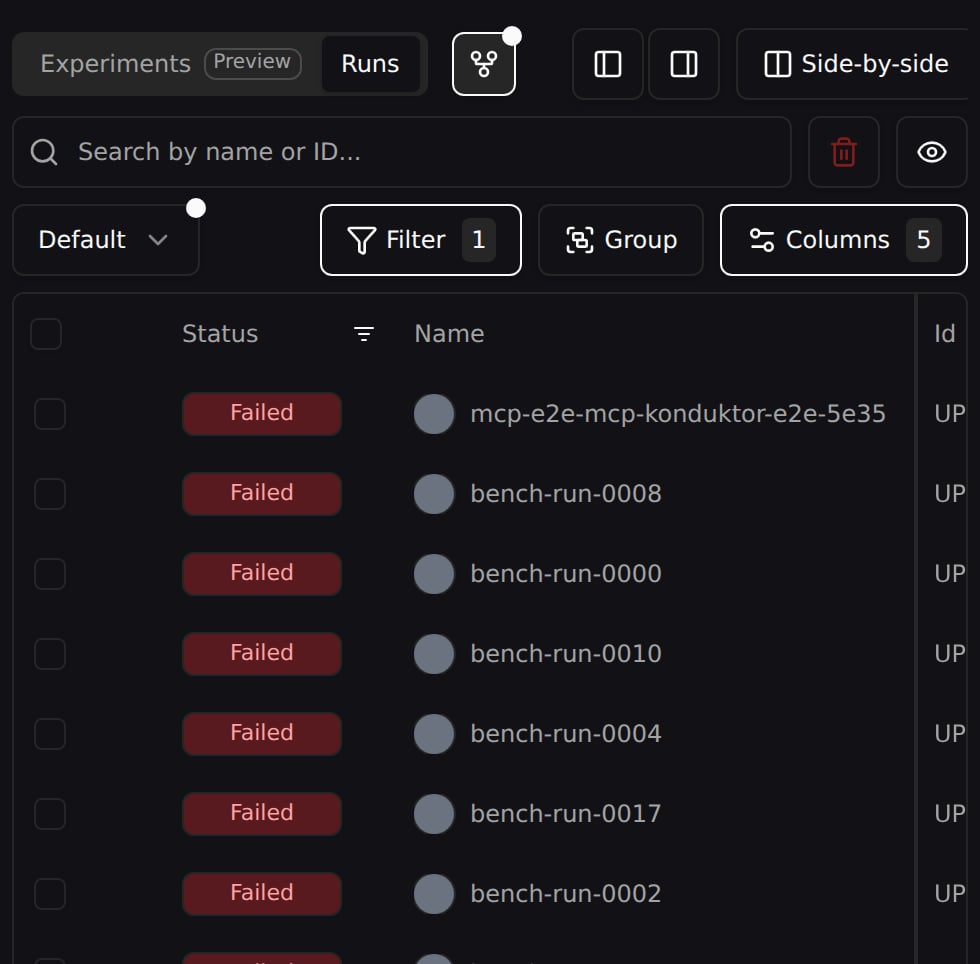
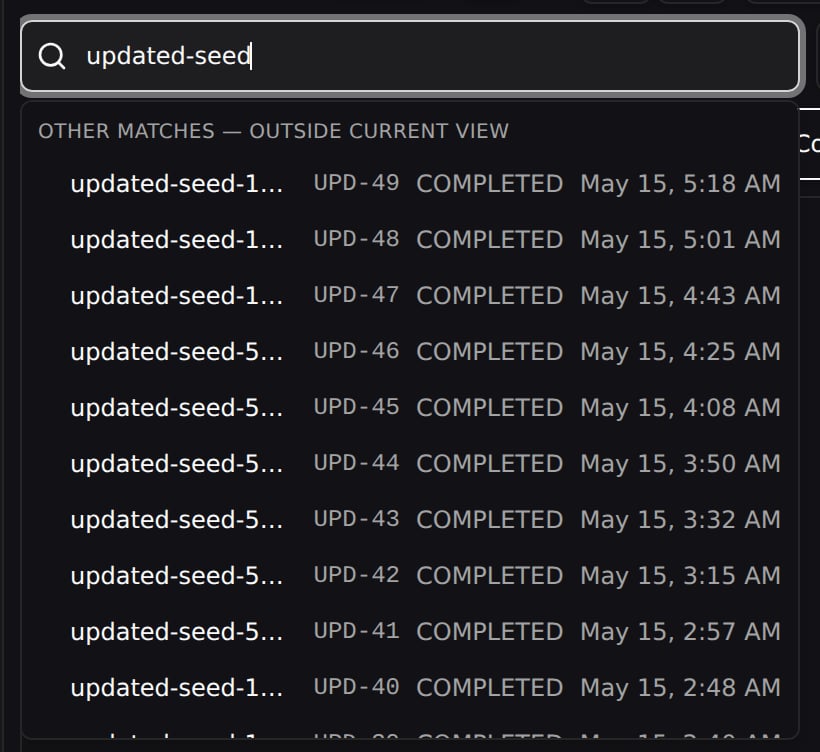
For example, filter the table to **Failed** runs (left), then search for one that finished successfully. It's outside your filter, so the table doesn't list it — but it turns up in the **Other matches** dropdown, ready to add (right):
Each row shows the run's name, its display ID (e.g. `UPD-57`), status, and creation time.
* **Click an out-of-view run** to add it to your selection. The dropdown stays open and keeps your query, so you can pick several in a row.
* A run that's already showing in the table appears grayed with an **In table** badge. If it's currently selected, though, it stays clickable — click it again to deselect it.
* Press **Esc** or click outside to dismiss the dropdown. Your typed query is kept, so clicking back into the search box brings the results straight back.
When there are more matches than fit, a footer reads *Showing top results — refine your search to see more.*
## Preset Views
Save your table configuration (visible columns, column order, filters, and sort settings) as a named **preset view**. This is useful for creating reusable perspectives on your data, such as "Training Metrics Only" or "Best Runs".
### Finding runs outside the current view
The moment your view is constrained, a plain narrow-down would silently miss any match your own view is hiding. So when the table is constrained by **any** of:
* an active **filter**
* **Display only selected**
* **Pin selected to top**
…the search *also* surfaces an **Other matches — outside current view** dropdown beneath the box, listing the matches your view is hiding. You can pull one into your selection without tearing down the view you built.
For example, filter the table to **Failed** runs (left), then search for one that finished successfully. It's outside your filter, so the table doesn't list it — but it turns up in the **Other matches** dropdown, ready to add (right):
Each row shows the run's name, its display ID (e.g. `UPD-57`), status, and creation time.
* **Click an out-of-view run** to add it to your selection. The dropdown stays open and keeps your query, so you can pick several in a row.
* A run that's already showing in the table appears grayed with an **In table** badge. If it's currently selected, though, it stays clickable — click it again to deselect it.
* Press **Esc** or click outside to dismiss the dropdown. Your typed query is kept, so clicking back into the search box brings the results straight back.
When there are more matches than fit, a footer reads *Showing top results — refine your search to see more.*
## Preset Views
Save your table configuration (visible columns, column order, filters, and sort settings) as a named **preset view**. This is useful for creating reusable perspectives on your data, such as "Training Metrics Only" or "Best Runs".
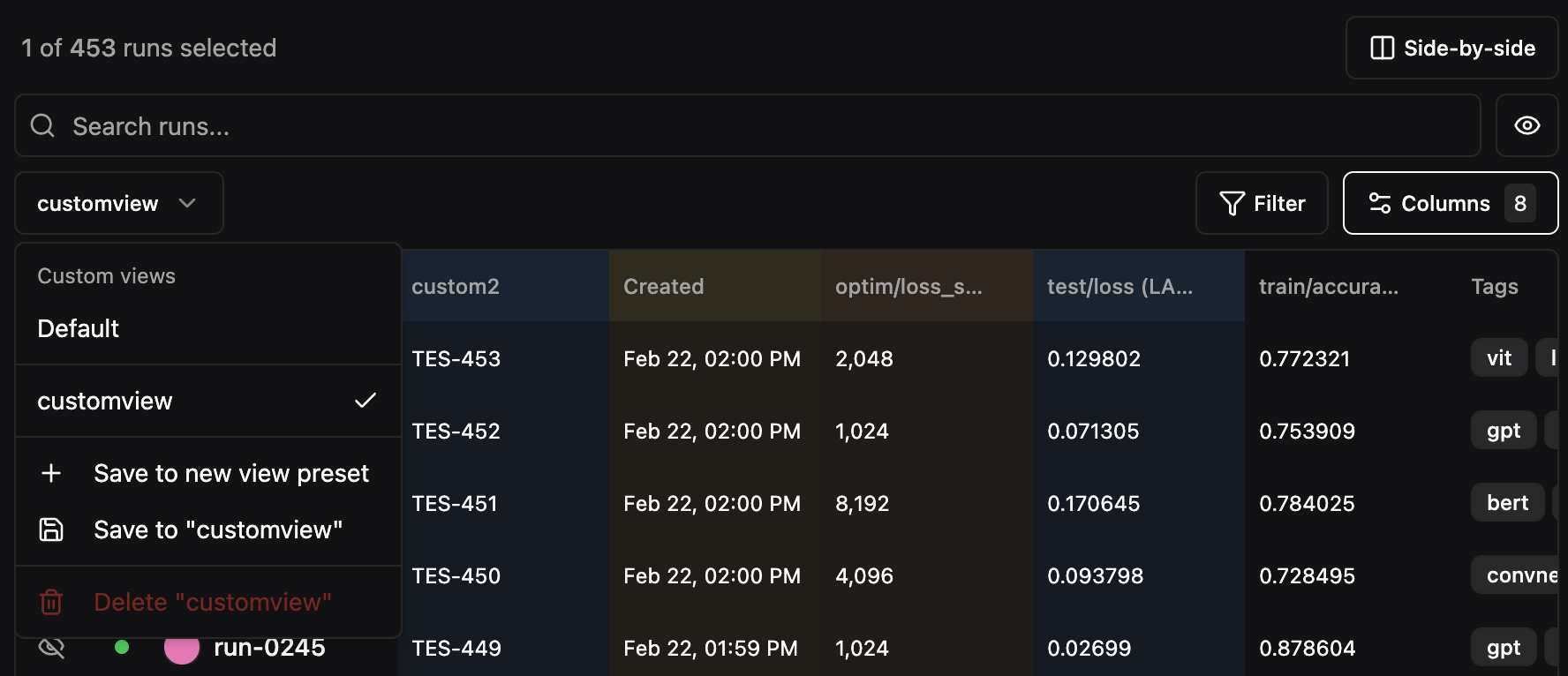 To create a preset:
1. Configure the table with the columns, filters, and sort order you want
2. Click the view selector dropdown (shows "Default" by default)
3. Select **Save to new view preset**
4. Enter a name for the preset
Preset views are saved per-project and shared across your organization. Switch between presets using the dropdown at any time.
## Pagination
The runs table paginates when there are more runs than fit on a single page. Use the page size dropdown to choose how many runs to display per page (default: 20).
The page indicator (e.g., `1 / 9`) is an **editable input** — click on the current page number and type a page number directly to jump to any page without clicking through next/previous.
To create a preset:
1. Configure the table with the columns, filters, and sort order you want
2. Click the view selector dropdown (shows "Default" by default)
3. Select **Save to new view preset**
4. Enter a name for the preset
Preset views are saved per-project and shared across your organization. Switch between presets using the dropdown at any time.
## Pagination
The runs table paginates when there are more runs than fit on a single page. Use the page size dropdown to choose how many runs to display per page (default: 20).
The page indicator (e.g., `1 / 9`) is an **editable input** — click on the current page number and type a page number directly to jump to any page without clicking through next/previous.