> ## Documentation Index
> Fetch the complete documentation index at: https://docs.trainy.ai/llms.txt
> Use this file to discover all available pages before exploring further.
# File Sync on Launch
> How Konduktor uploads and synchronizes your code and files before workload execution.
`file_mounts` backed by cloud storage buckets/credentials (the object
storage sync flow described below) is deprecated and will be removed in a
future version of Konduktor. Prefer building your application code into
your image or using `workdir`/git-based sync instead.
Users have the following options for submitting their application code as a Trainy workload.
* (Re)building a docker image for every change and pushing it to a registry for launching a workload.
* Committing changes to a development branch in git and checking it out in the workload
* Synchronizing application code through file sync via `file_mounts` and `workdir` definitions.
The first option is often slow given the size of deep learning images so we focus on the the latter two here.
## Setup
Full setup for file sync requires cloud storage configuration which can be found [here](/setup#optional-setup-cloud-storage-credentials).
Konduktor mounts your cloud credentials into the job containers and places them in `~/.aws` (S3) or `~/.config/gcloud` (GS) at startup. If you plan to use command-line tools like `aws s3`, `gsutil`, or `gcloud`, ensure your image includes those CLIs or install them in your `run:` block.
We check our cloud service account credentials in the Trainy cluster with this:
```
$ konduktor check # s3, gs, etc.
```
Afterwards we configure the storage provider by setting `~/.konduktor/config.yaml`
```
# ~/.konduktor/config.yaml
allowed_clouds:
- gs # {s3, gs}
```
## Usage
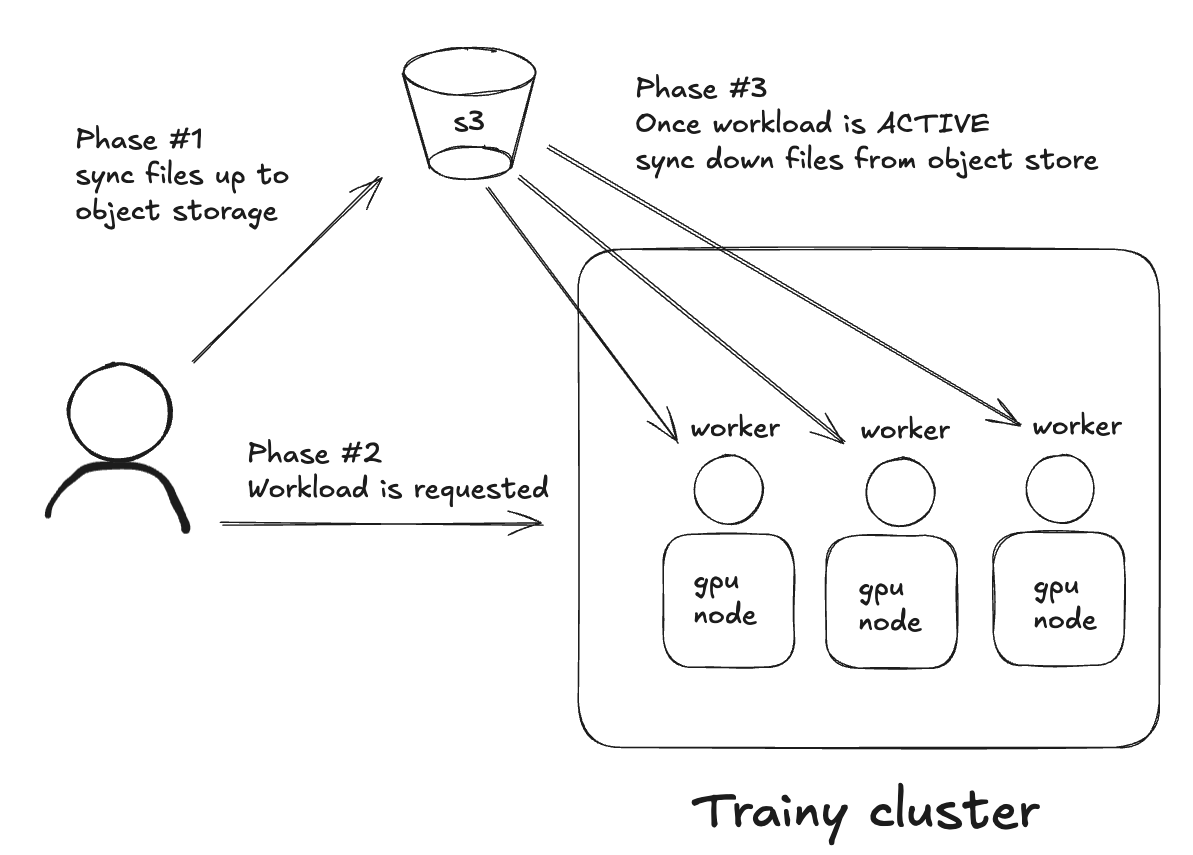 When we run `konduktor launch` two things happen atomically in this order. If any step fails, the workload will fast-fail.
1. `workdir` and `file_mounts` are synchronized to object storage
2. workload is submitted
3. workload, once active, will sync down `workdir` and `file_mounts`
In our workload definition, we can define the following:
```
name: single-file-upload
num_nodes: 1
workdir: .
file_mounts:
# syntax is :
~/test_dir: ./test_dir
# syntax is :
~/static_path.txt: ./static_path.txt
resources:
cpus: 1
memory: 1
image_id: ubuntu
labels:
kueue.x-k8s.io/queue-name: user-queue
maxRunDurationSeconds: "600"
run: |
ls -lah
ls -lah ~/
```
## .konduktorignore
Use a `.konduktorignore` file to exclude files and directories from being synchronized.
It works similarly to `.gitignore`, and is evaluated relative to the sync root.
Patterns in `.konduktorignore` are matched relative to the location.
### Examples
#### Workdir
```
workdir: ./my_dir
```
Place `.konduktorignore` at `./my_dir/.konduktorignore`.
#### File mounts
```
file_mounts:
/remote: ./my_dir
```
Place `.konduktorignore` at `./my_dir/.konduktorignore`.
#### Example `.konduktorignore` in `./my_dir/`:
```
*.log # ignores *.log at the sync root (my_dir)
secret.txt # ignores secret.txt at the sync root (my_dir)
secret-dir1/** # ignores the entire secret-dir1/ subtree
secret-dir2/*.bin # ignores .bin files under secret-dir2/
```
## Cloning private GitHub Repositories
Cloning private repositories is supported via both file sync of ssh keys to your object store or through [secrets](/secrets). This section demonstrates how to file sync an ssh key from our workstation onto the workload and configure SSH for pulling from a private repository.
```
name: private-repo-ssh
num_nodes: 1
resources:
cpus: 1
memory: 2
image_id: ubuntu
labels:
kueue.x-k8s.io/queue-name: user-queue
maxRunDurationSeconds: "3200"
file_mounts:
~/.ssh/test-ssh-key: ./tests/secrets/test-ssh-key
run: |
set -eux
apt-get update && apt-get install -y git openssh-client
if [[ -f ~/.ssh/test-ssh-key && -s ~/.ssh/test-ssh-key ]]; then
echo "SSH key mounted and non-empty"
else
echo "SSH key missing or empty"
exit 1
fi
chmod 600 ~/.ssh/test-ssh-key
echo -e "Host github.com\n\tIdentityFile ~/.ssh/test-ssh-key\n\tStrictHostKeyChecking no\n" > ~/.ssh/config
git clone git@github.com:mygithubaccount/My-App.git
```
When we run `konduktor launch` two things happen atomically in this order. If any step fails, the workload will fast-fail.
1. `workdir` and `file_mounts` are synchronized to object storage
2. workload is submitted
3. workload, once active, will sync down `workdir` and `file_mounts`
In our workload definition, we can define the following:
```
name: single-file-upload
num_nodes: 1
workdir: .
file_mounts:
# syntax is :
~/test_dir: ./test_dir
# syntax is :
~/static_path.txt: ./static_path.txt
resources:
cpus: 1
memory: 1
image_id: ubuntu
labels:
kueue.x-k8s.io/queue-name: user-queue
maxRunDurationSeconds: "600"
run: |
ls -lah
ls -lah ~/
```
## .konduktorignore
Use a `.konduktorignore` file to exclude files and directories from being synchronized.
It works similarly to `.gitignore`, and is evaluated relative to the sync root.
Patterns in `.konduktorignore` are matched relative to the location.
### Examples
#### Workdir
```
workdir: ./my_dir
```
Place `.konduktorignore` at `./my_dir/.konduktorignore`.
#### File mounts
```
file_mounts:
/remote: ./my_dir
```
Place `.konduktorignore` at `./my_dir/.konduktorignore`.
#### Example `.konduktorignore` in `./my_dir/`:
```
*.log # ignores *.log at the sync root (my_dir)
secret.txt # ignores secret.txt at the sync root (my_dir)
secret-dir1/** # ignores the entire secret-dir1/ subtree
secret-dir2/*.bin # ignores .bin files under secret-dir2/
```
## Cloning private GitHub Repositories
Cloning private repositories is supported via both file sync of ssh keys to your object store or through [secrets](/secrets). This section demonstrates how to file sync an ssh key from our workstation onto the workload and configure SSH for pulling from a private repository.
```
name: private-repo-ssh
num_nodes: 1
resources:
cpus: 1
memory: 2
image_id: ubuntu
labels:
kueue.x-k8s.io/queue-name: user-queue
maxRunDurationSeconds: "3200"
file_mounts:
~/.ssh/test-ssh-key: ./tests/secrets/test-ssh-key
run: |
set -eux
apt-get update && apt-get install -y git openssh-client
if [[ -f ~/.ssh/test-ssh-key && -s ~/.ssh/test-ssh-key ]]; then
echo "SSH key mounted and non-empty"
else
echo "SSH key missing or empty"
exit 1
fi
chmod 600 ~/.ssh/test-ssh-key
echo -e "Host github.com\n\tIdentityFile ~/.ssh/test-ssh-key\n\tStrictHostKeyChecking no\n" > ~/.ssh/config
git clone git@github.com:mygithubaccount/My-App.git
```